This guide provides a straightforward process for updating sales applicant statuses and buyer positions in the CRM, ensuring accurate tracking and management of property sales. By following these steps, users can efficiently navigate the system to maintain up-to-date records, which is crucial for effective sales operations. Whether you're a new user or need a refresher, this guide simplifies the task, enhancing productivity and organisation in property sales management.
1. Navigate to the Sales Record you want to update.

Tip: Tip! The 'Status' drop down menu can be edited in the 'Lookups' section of the 'Configuration' menu. There is a guide on this in the CRM Help Centre
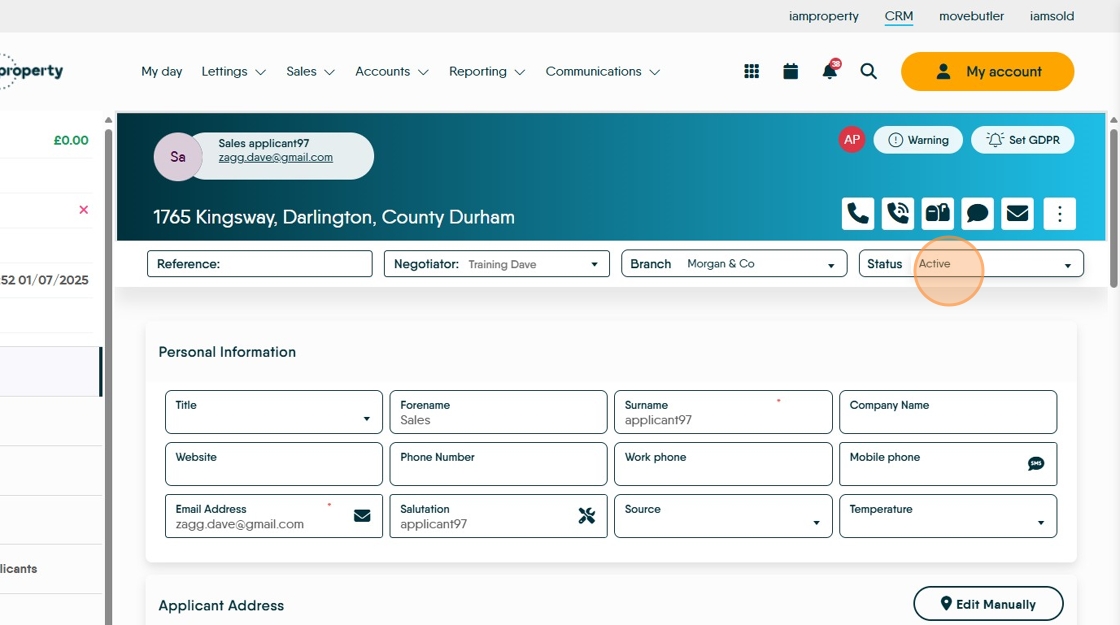
2. In the Status field at the top of the screen, select the option you want from the drop down list.
3. To update the 'Buyer Position' scroll down the screen to Applicant Criteria. Click into the 'Buyer Position' and select from the drop down menu. In this case we selected Property to Sell - Not on Market Yet.

4. Click here to Save the settings.

Viewing Sales Applicant Status
5. Click "Sales"

6. Click "Applicants"

7. Click "#all"

8. You will then see a list of all the Sales Applicants you have in CRM. If you see this screen as tiles (as in the previous screen) click here.

9. Scroll across the screen and you will see the Buyer Position and Applicant Status columns.
As with other areas of CRM you can click the header line and sort the column by ascending or descending order.
