This guide provides a straightforward process for effectively uploading and emailing sales or lettings brochures, ensuring that you can easily manage property documents. It breaks down each step clearly, making it accessible for users of all skill levels. By following these instructions, you can streamline your property marketing efforts and enhance communication with clients. This process is the same if you are sending sales or lettings brochures and can be used to send brochures to applicants
Tip: Tip! This guide follows a previous guide that shows how to create a brochure and save it to the propertie's documents folder.
1. Navigate to the property you are adding the brochure to.

2. Click "Documents"
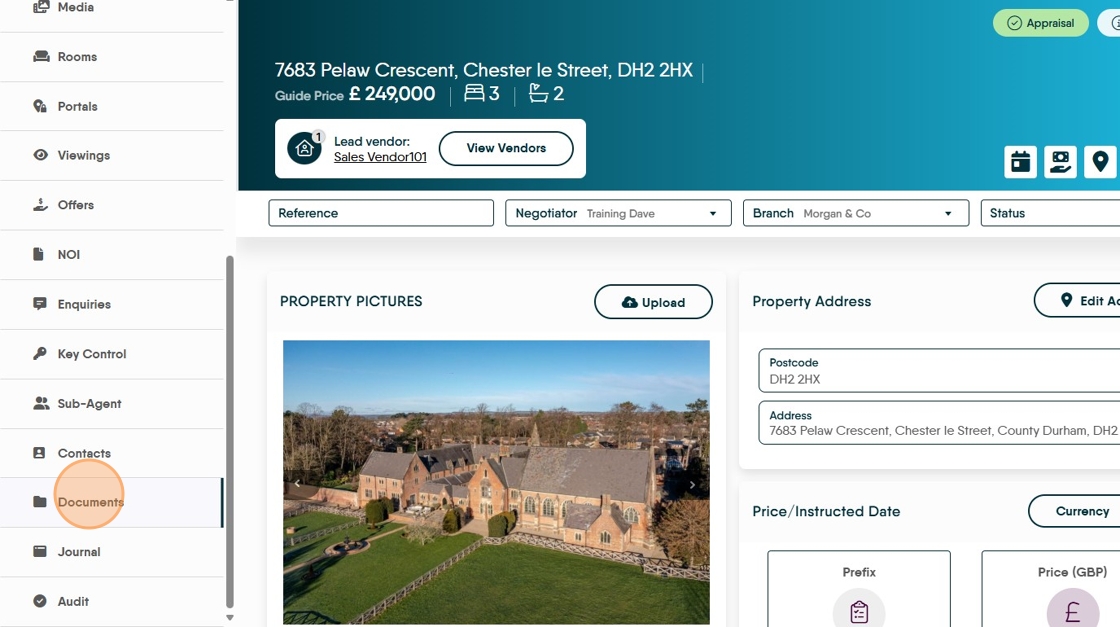
3. Click "Add Document"
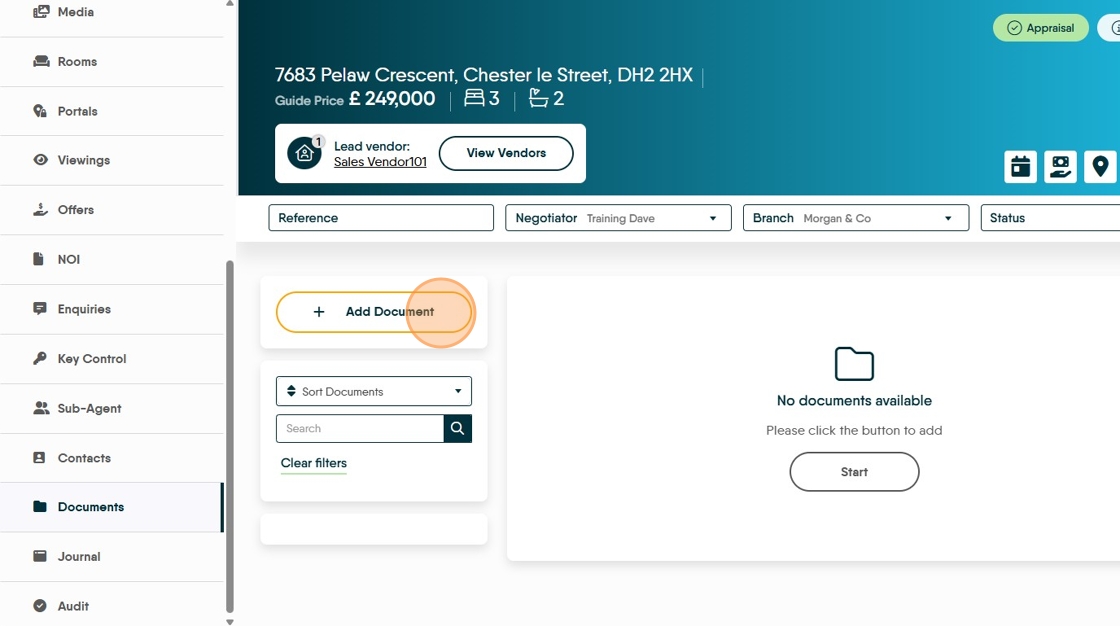
4. Click 'Document Type' and from the list "Brochure"

5. "Drag and drop files here or click to upload documents" from the screen that shows, navigate to where your file is stored, if you have created and saved a guide it will (unless previously removed) be in the Downloads folder of your PC. Select the file and click to import into CRM.

6. Click the "File Name" field.

7. Type the name you want for the document, Click "Save"

To Send the Document to the Vendor
8. Click onto the Vendors name


9. From this email screen, click here.

10. The documents uploaded to the property record will show on the right side of the screen. Click to select the document you want to email.
The email address for the Vendor/Landlord you are sending the document to will show in the screen.
If you want to send the document to another recipient e.g. a prospective Purchaser or Tenant then add their email to the 'To' field and remove the original email.

11. A green tick will show the document is selected.

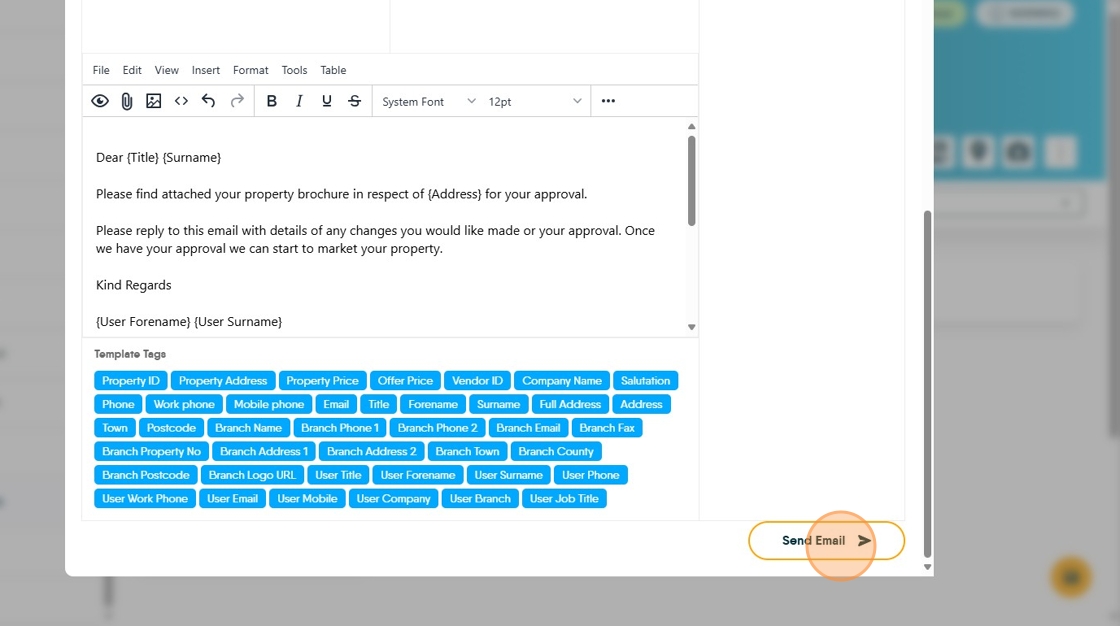
12. Either type your email message in the message screen or (if you have one created) select a template from the menu.
In this case we do so, click "Brochure Confirmation"
13. Click "Send Email"
14. The email will be sent to the recipient that is set in the to box and the email recorded in the Property Journal. If you want to link the Journal record to the applicant it can be done in the journal record.