This guide provides a step-by-step approach to creating a final inspection report in the Inspections module, ensuring users can navigate the system efficiently. It simplifies the process, helping property managers save time and reduce errors while managing inspections.
1. Navigate to https://crm.iamproperty.com/MyDay
2. Firstly Click on "Lettings"

3. Then Click "Property management"

4. Then Click on "Inspections"

5. If you are creating the Report for an already completed inspection follow this process, otherwise jump to the next slide.
Scroll down the page to find the inspection you want to create the report for and Click "View" on the right hand side

6. To create the report the inspection must be 100% completed. Click "Generate Report"

7. Select your report options
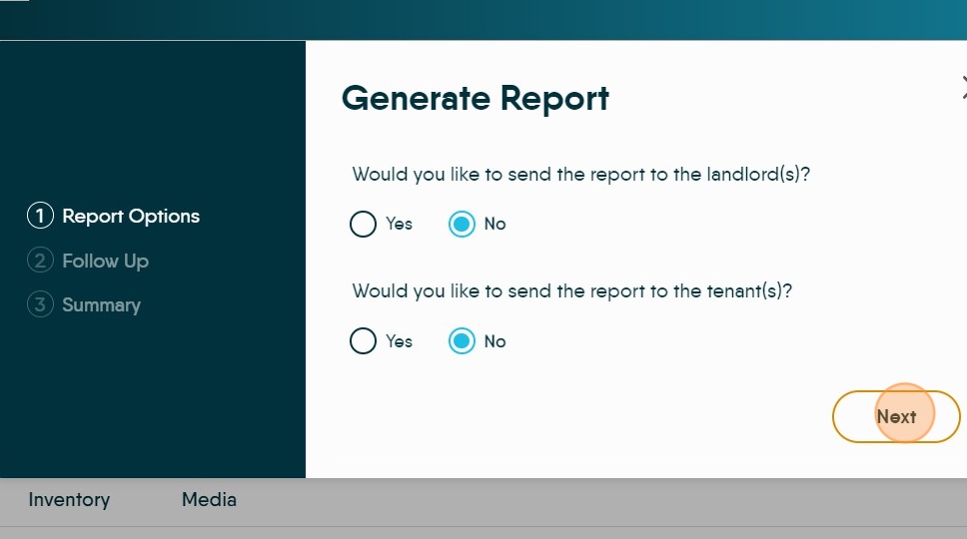
8. If you want to create a follow up inspection. Click "Yes" otherwise "No"

9. Complete the on screen options and click "Next"
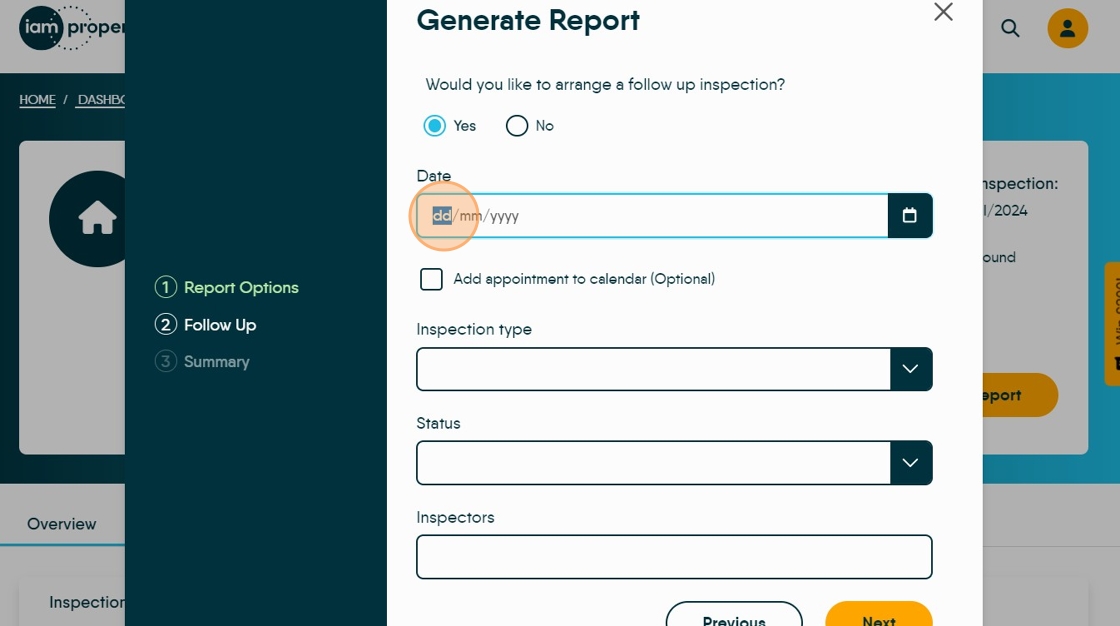
10. Click "Add appointment to calendar (Optional)" if you want this appointment to show in the Calendar, if this is not selected the appointment will only show in the Inspections module.

11. Click the "Start time" field.
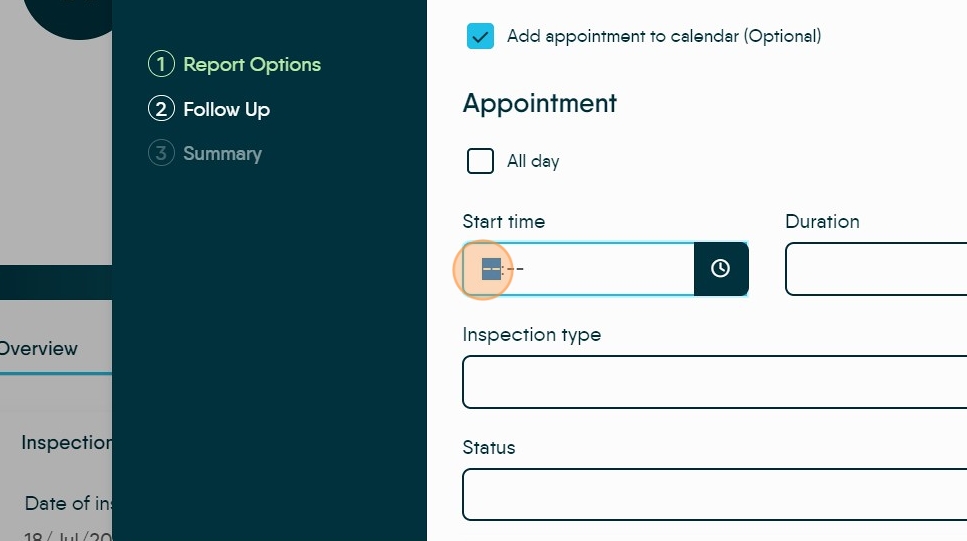
12. Select the time scale you wish to use.

13. Select the option in inspection type

14. Select the option, for status

15. Click the inspector that you require

16. Click "Next"

17. Click "Generate Report"

18. The report will generate and will be available in the Documents folder of the property record.