This guide provides a straightforward method for ensuring all relevant contacts are included in your email or SMS communications. By following the outlined steps, users can manage their contact lists.
1. Navigate to the record you are sending the message from.
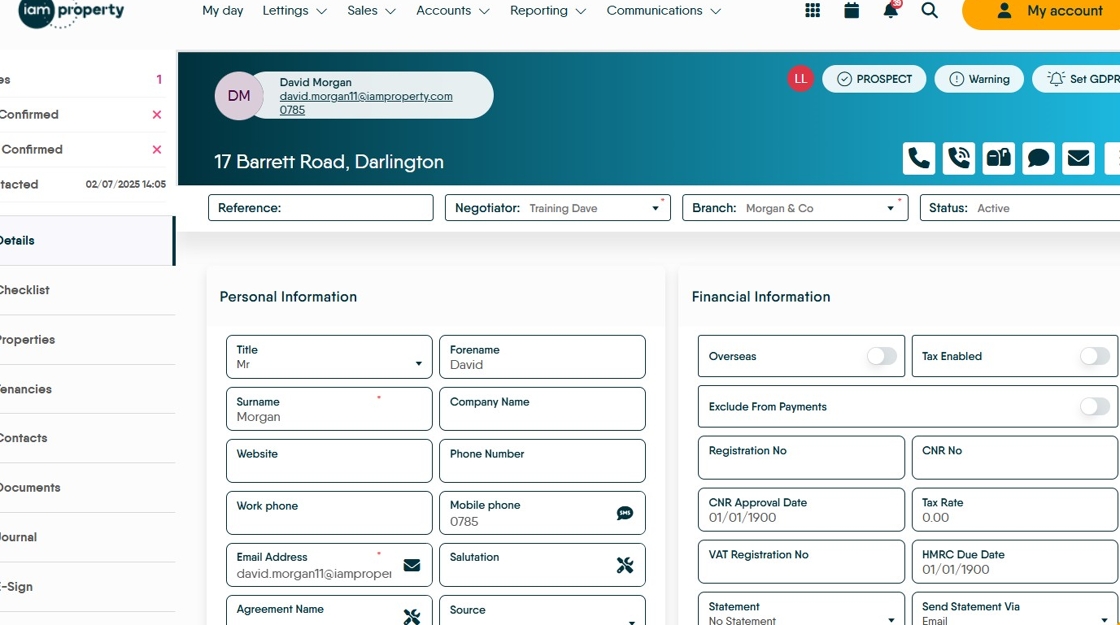
2. It is possible to add multiple email addresses into the "Email Address" field. in the format of 'email1;email2' however this is not ideal and is not CRM best practice.
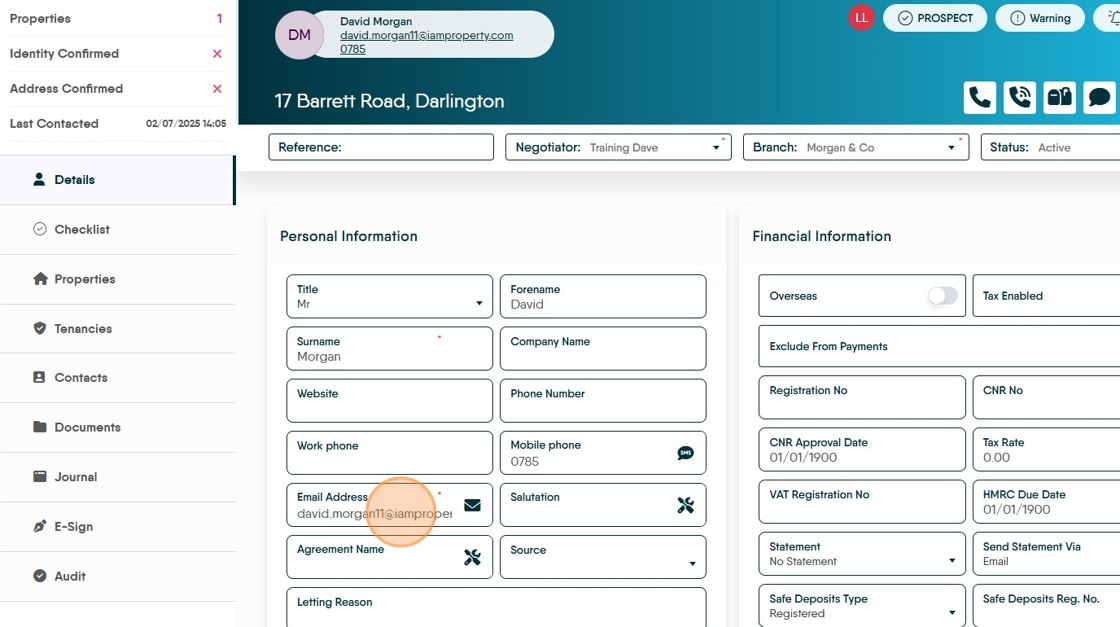
3. The best way to do this is to ensure your users are in contacts and Click "Contacts"
to check this. Any linked Applicant or Mr/Mrs etc record should be added separately.

4. To send an email. Click here.

5. The additional records will show in the right of the screen. Select them as required, they will show with a green check mark when selected.
In some areas of CRM the contact details will only be shown when the 'paperclip' icon is clicked.

6. Once the contacts are selected click 'Send Email' to send the message.

7. Click here.

8. SMS works in the same way, however if there is no mobile number attached to the user then they will not show in the SMS option
It is important that if a contact only has a mobile number, that number is added into the Phone Number and Mobile Number fields in their record.
