This guide provides a step-by-step process for sending an E-Sign letter to allow a letter to be E-signed in CRM via DocuSign. This guide makes the assumption that you are already comfortable adding and editing Letters in CRM. Regardless of Letter type the process to add E-Sign tags is the same.
Alert: This guide assumes you have a Business Docusign Account, it is set up in CRM and you have credit on your Docusign account.
Sending Via E-Sign
Alert: Alert! The process to create and send a letter is the same regardless of what type of record you are sending the letter from and what type of letter you are sending, the only criteria is the E-Sign tags must be added and the letter enabled for E-Sign.
1. Click "Lettings" or "Sales" depending on document type or search for the Record you are sending the letter from. Alternatively use the 'Search' function.

2. For example here we will look at sending a Landlord Letter.
Click "General"

3. Click "Landlords"

4. Find your landlord and click "View Landlord"

5. Once in the selected record, click "Letters"
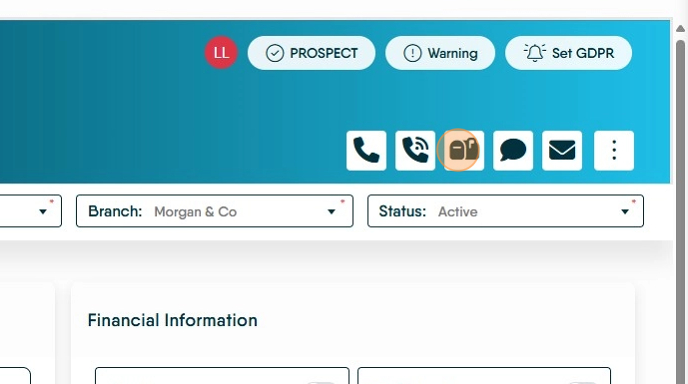
6. From the drop down menu select the letter you are sending.

7. Click "Generate"
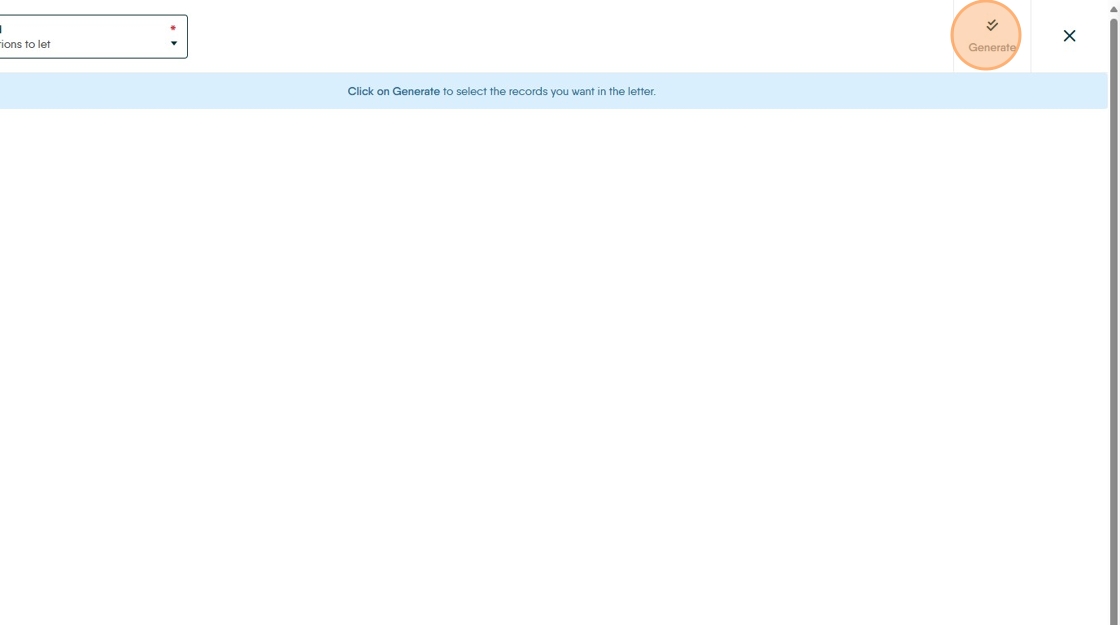
8. Depending on the letter, you may have options to select at this point, complete as appropriate.

9. Click "Generate" the letter will now be created and show on the screen with all merge tags visible.

10. You can check the Merged Data by clicking on the 'View Merged Data' icon in the menu bar (highlighted) Click "Save to E-Sign"

11. Click "Save to E-Sign"
If this is successful you will see this message in the top right of the screen.

12. The E-Signed document will be created and added to E-Sign message list to be sent, to send the e-sign envelope.
13. Click "Lettings"
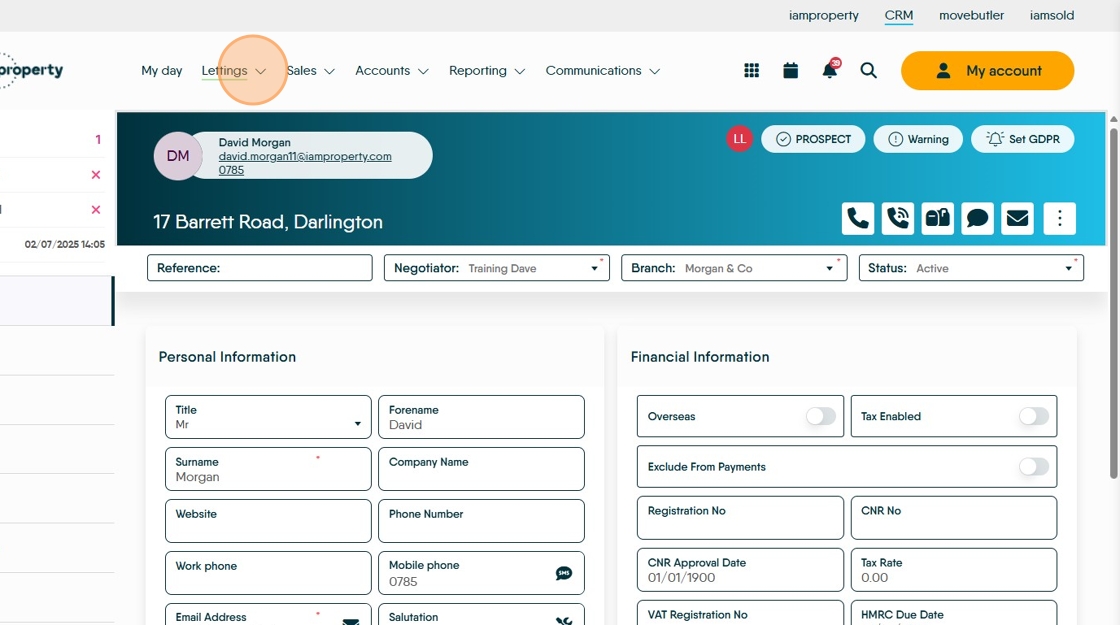
14. Click "General"

15. Click "E-sign"

16. Click here.
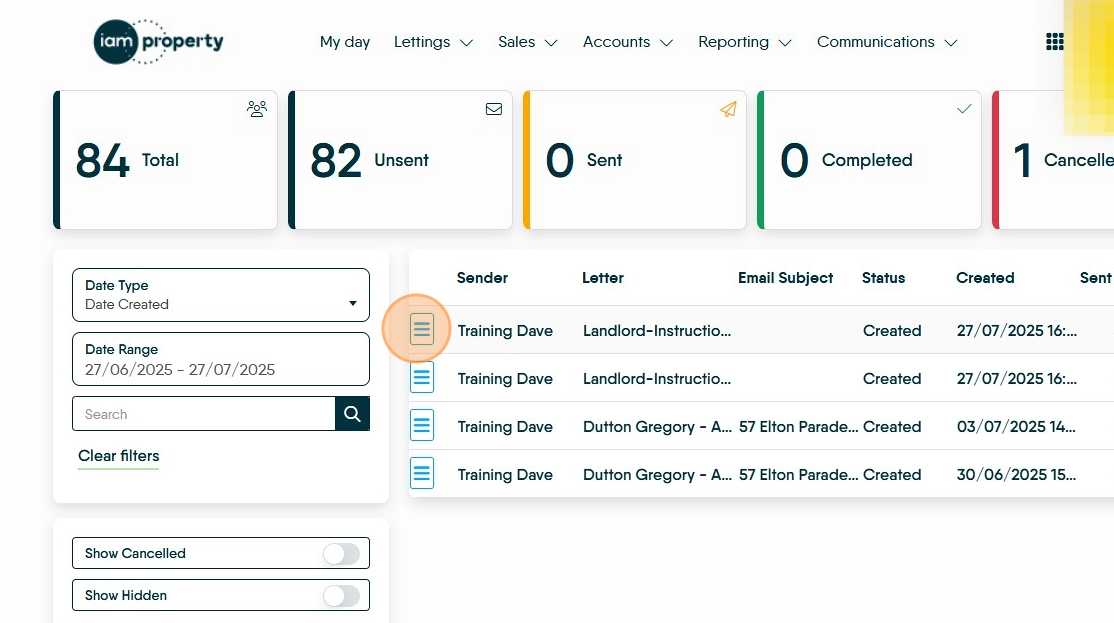
17. Click "Send"

18. Click "Send Envelope
Landlord-Instructions to let - Sender: Training Dave"
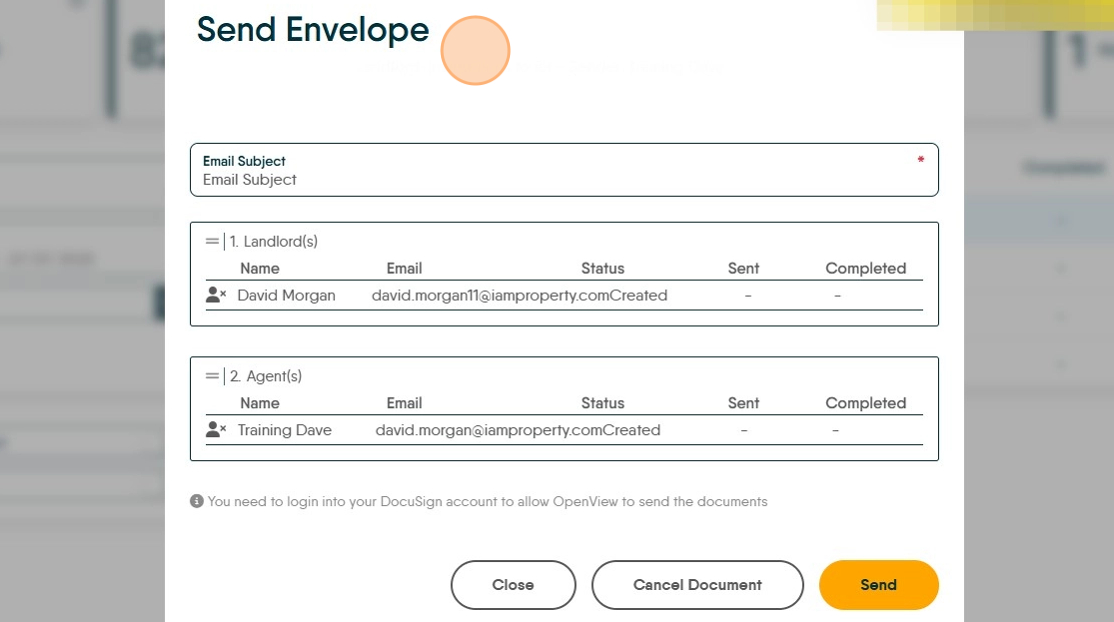
19. Click "Send"

20. The E-Sign document (known as an envelope) will be sent and when signed will show in the e-sign tab of the record it was sent from e.g. in this case in the Landlord record