
This guide provides a step-by-step process for adding E-Sign tags to allow a letter to be e-signed in CRM via DocuSign. This guide makes the assumption that you are already comfortable adding and editing Letters in CRM. Regardless of Letter type the process to add E-Sign tags is the same.
Alert: Alert! When creating a letter in CRM it is important you create the correct letter type in the Add New Letter section. If you select Lettings Applicant as the letter type, this letter will only be available in the Lettings Applicant area of CRM and NOT in another section e.g. Landlord. If you want a letter in multiple places it needs to be created into those areas.
1. Click here to edit the letter.

2. To add or update the merge fields. Click "Insert Merge Field"

3. Click onto the letter where you want the tag to be placed.
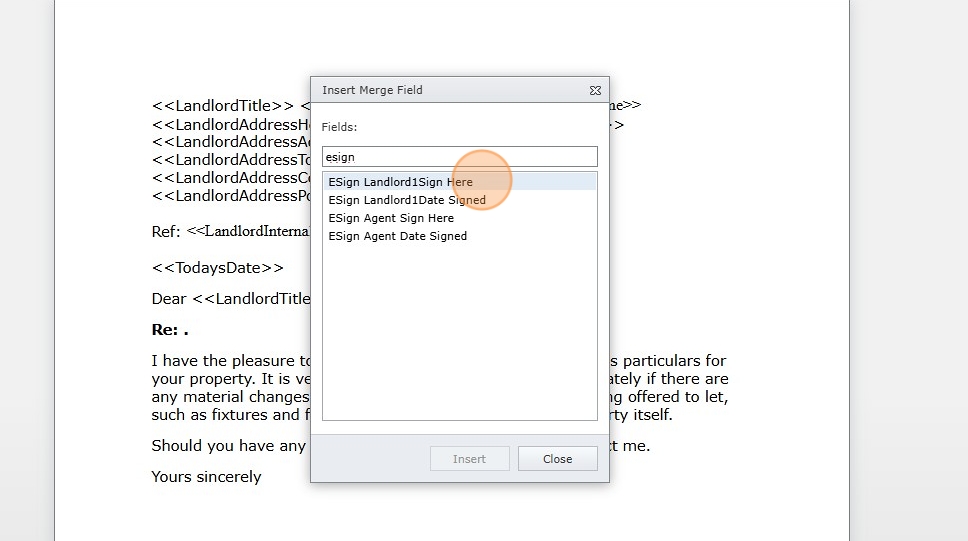
Click the "Fields:" search option at the top of the screen. Search for the tag you want to use in this case E-Sign .
N.B. Scrolling will not always find you the option required.

4. Click the "Fields:" field and type "esign"

5. To add the tags for a Landlord to esign. Click "ESign Landlord1Sign Here"
6. Click "Insert"

7. Then click "Esign LandlordDateSigned". Click "Insert"
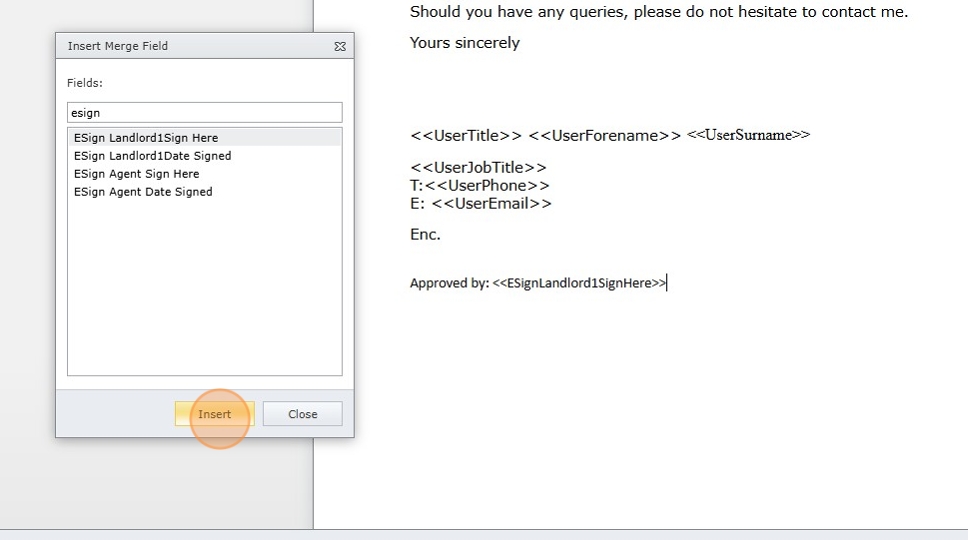
8. Click "Close"

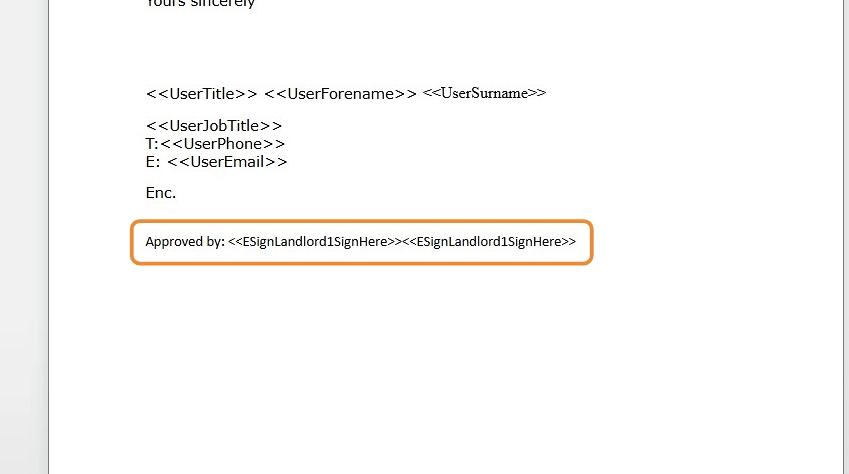
9. The E-Sign tags will show where you opted to place them. Once added it is good practice to 'hide' the text to do this...
10. Click "Home"

11. Select the text showing the E-Sign tags. Click here.

12. Click here to select white or whatever colour your paper is. This will effectively hide the text.

13. Click "Mail Merge"

14. Click "Save this Letter"

15. Click here to enable E-Sign on the letter when it is created.

16. Click here.

17. You will know a document is E-Signable as it will show "Save to E-Sign" in the menu bar. You should be able to see where you are asking the recipient to sign their name, but NOT the esign tags as these have been hidden.

18. Click "Save to E-Sign"
If this is successful you will see this message top right of the screen.