This guide provides a straightforward, step-by-step approach to adding a new contact in your CRM system, ensuring that you can efficiently manage your clients contacts. By following these detailed instructions, you can save time and avoid potential errors when entering important information. It's an essential resource for anyone looking to streamline their CRM processes and enhance their organisation skills.
1. Navigate to the Applicant/Landlord/Vendor/Tenant record you want to add a new contact to.
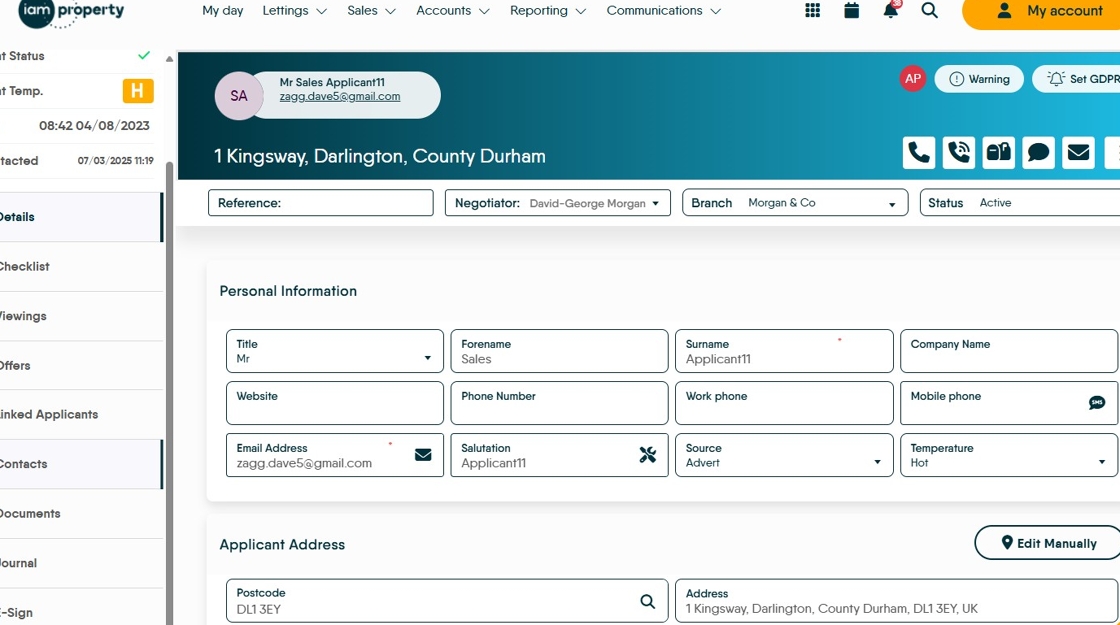
2. Click "Contacts"
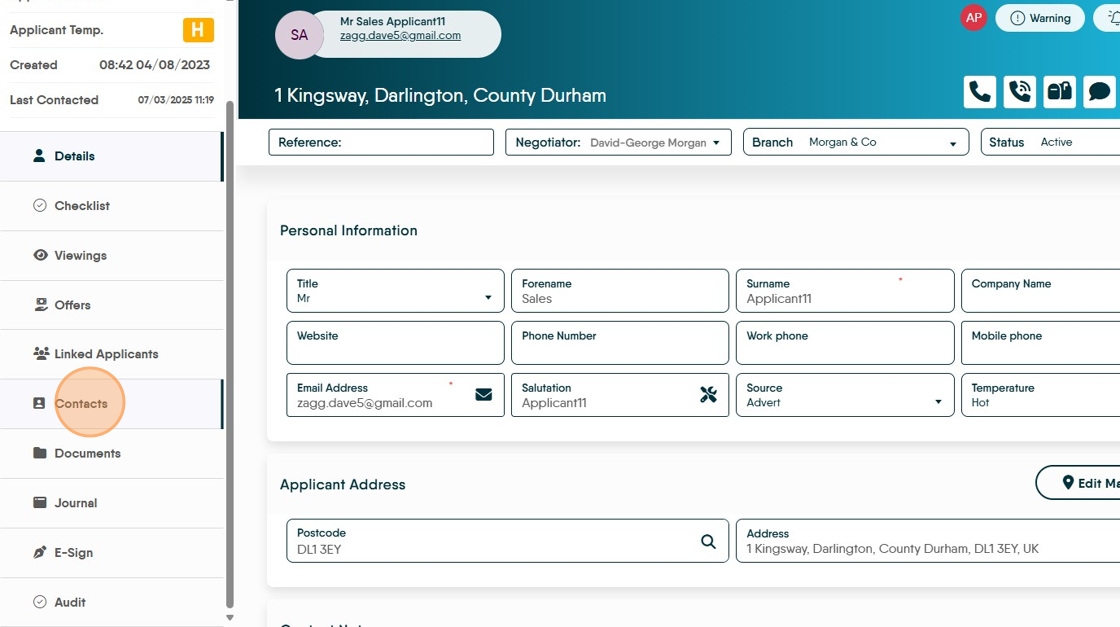
3. Click "New Contact"

4. Click here and search if you are picking an existing contact e.g. a Solicitor

5. Type the name of the Contact you are searching for and select from the drop down menu.

6. If you are adding a new Contact. Click here.

7. Select the Contact type from the drop down menu, for example click "Solicitor"

8. Complete all the fields

9. Click this field and add the postcode if you have it.
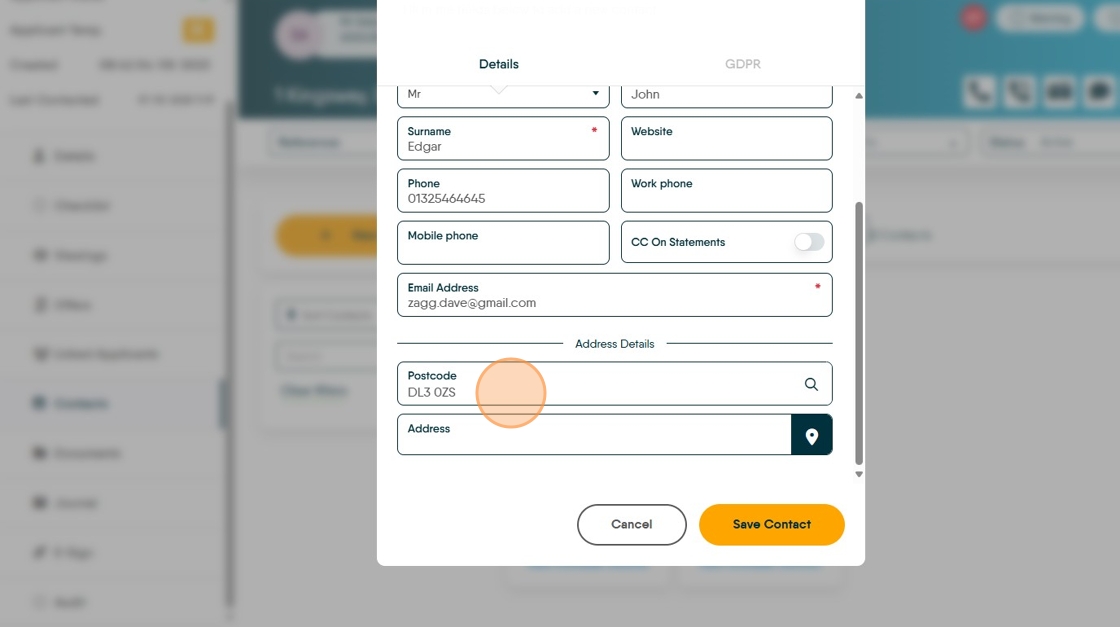
10. Click here to search.

11. Click "-- Select Address --" to find the contact.

12. Click "Save Contact"
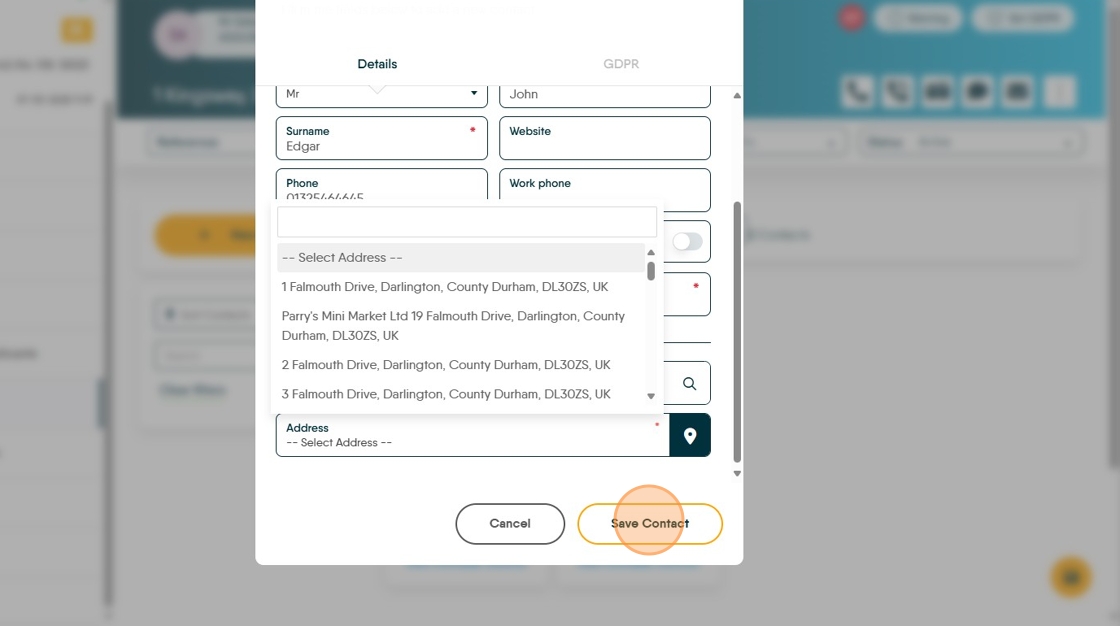
Alert: Alert! At this point you may be asked to update the GDPR information for the contact and add the negotiator details.
13. Click "GDPR" select all the options as appropriate to your company policy.

14. Click here to select the Negotiator from the drop down list.
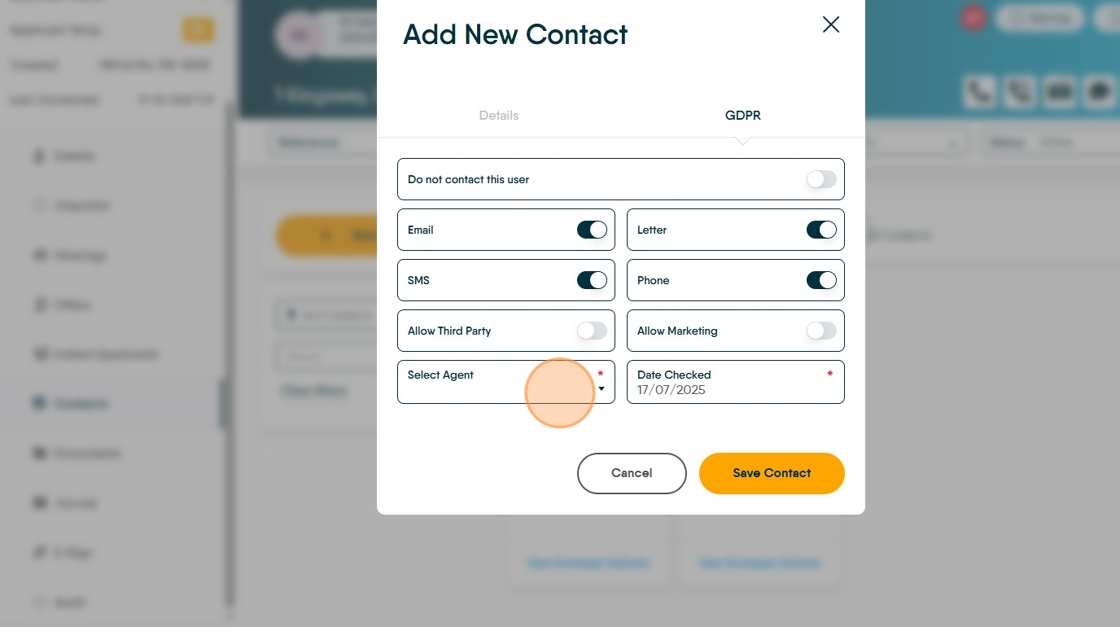
15. Click "Save Contact"
