This guide provides a step-by-step approach to creating an email template in the CRM, making it easy to personalise communications with clients. By following the instructions, users can efficiently craft templates that enhance their outreach efforts, saving time and ensuring consistency in messaging.
1. Navigate to https://crm.iamproperty.com/Lettings/Tenant/Record/70854545
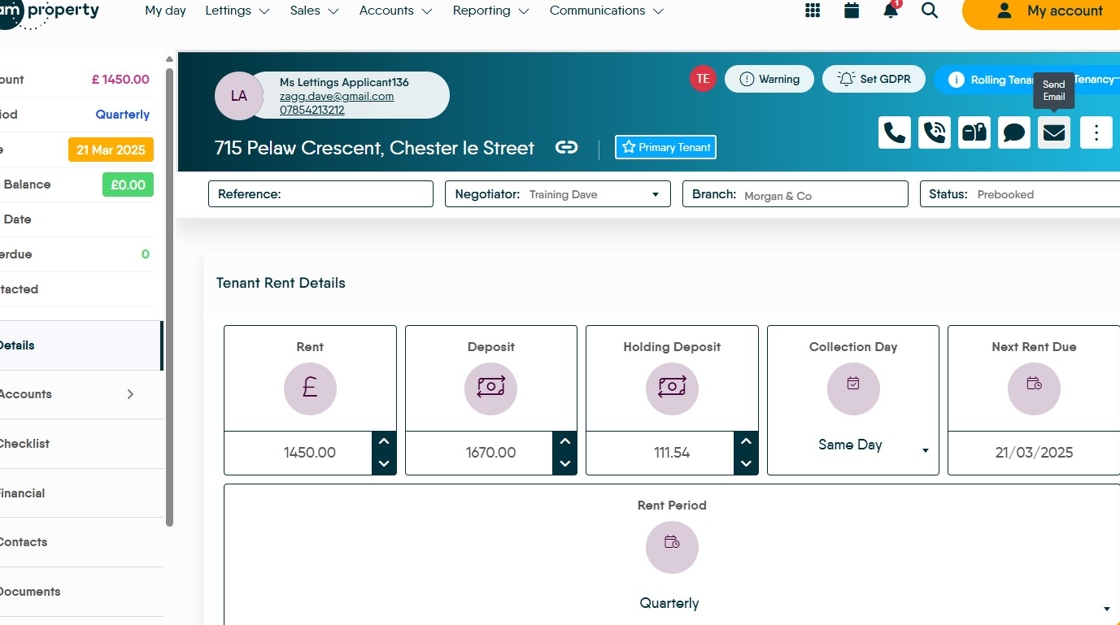
2. Click here.
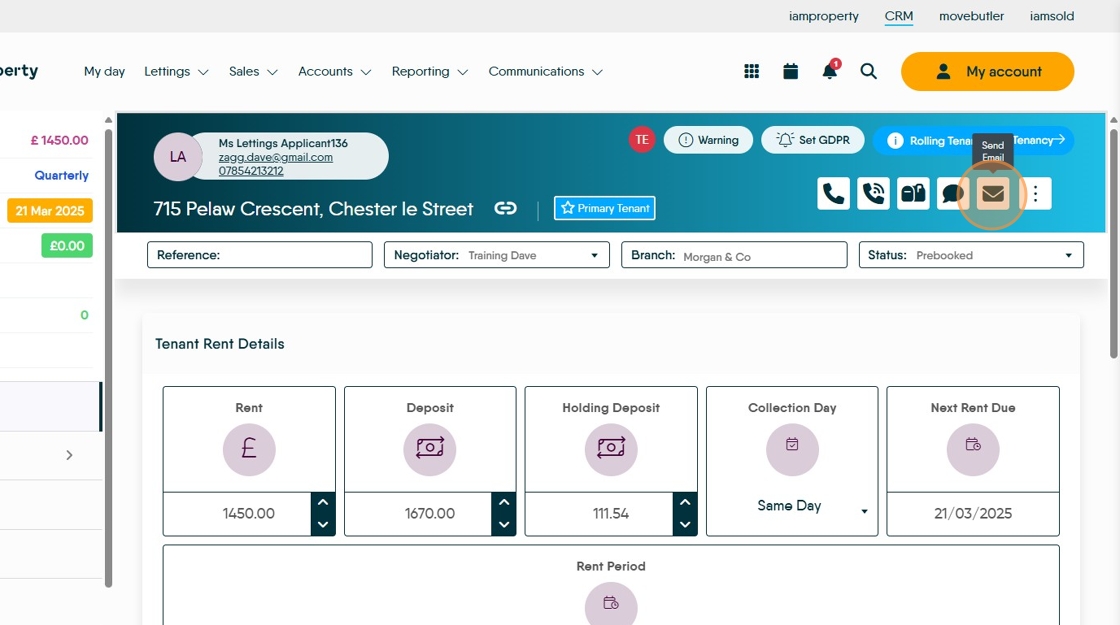
3. Click here and type the body text of your email.

4. To add the 'Template Tags' place the cursor where the tag is to go. Click the blue options at the bottom of the screen.
Click "Forename"
Click here.
Click "Surname"

5. Click here.

6. Click here.
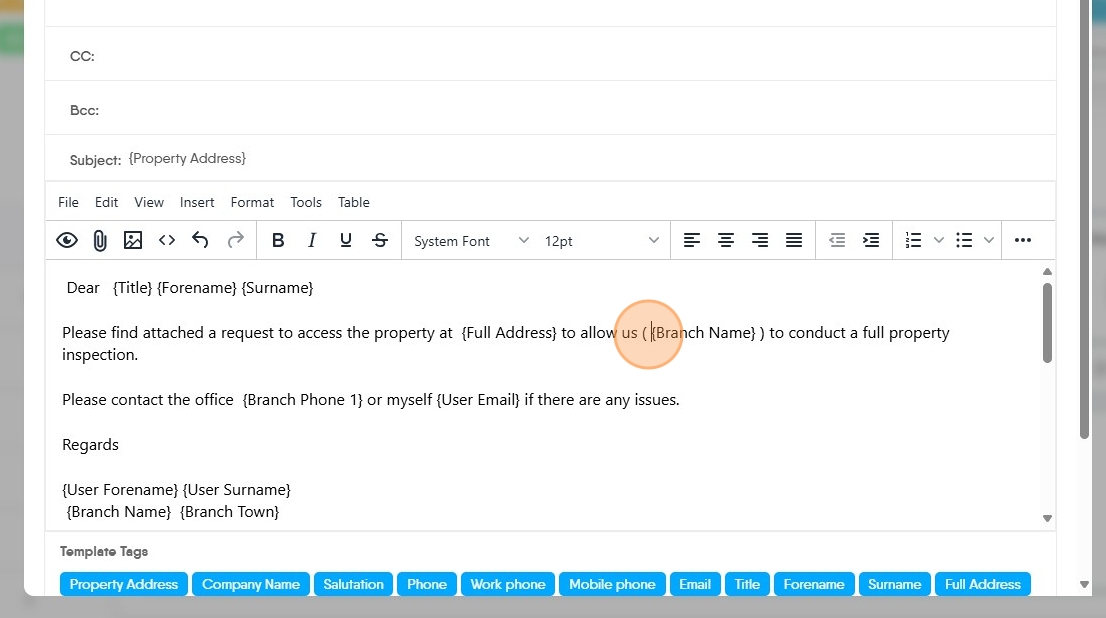
7. If required remove the additional spaces from the text.

8. To save or update the templates click here.

9. Click "Update Template" to save the updated template.

10. Click "Save As New Template"

11. Click the "Templates" field and name the template.

12. Click here to save the new template.
