This guide provides a straightforward process for generating a Safety Compliance Report in your CRM system, ensuring that you can efficiently track essential safety checks for properties. By following these steps, you can easily access, print, or export compliance data, which is crucial for maintaining safety standards and regulatory compliance in property management. Viewing this guide will save you time and streamline your reporting efforts, enhancing your operational efficiency.
2. Click "Reporting"
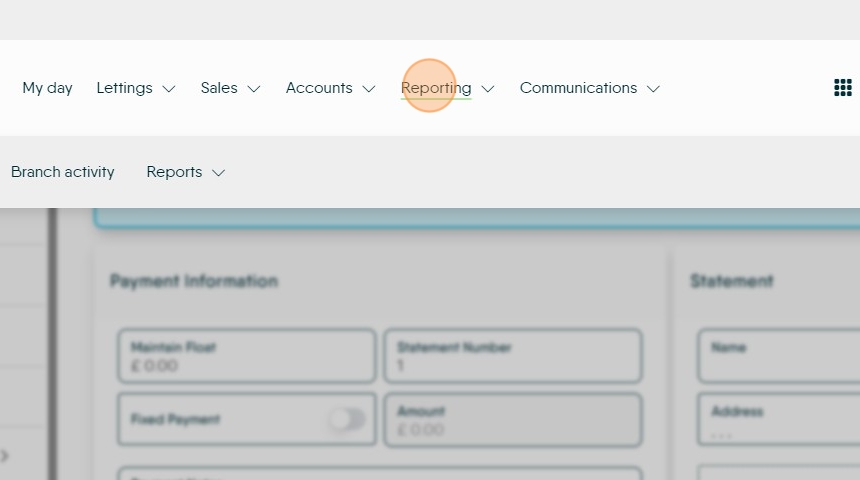
3. Click "Reports"

4. Click "Lettings"

5. Click here. Search for the report you require by typing in the search field or scroll down the list.

Alert: Alert! In this guide we are looking at creating a Compliance report for Lettings properties.
6. Click "Standard Compliance checks due" (in this example)

7. Click the "Number of Days" field.
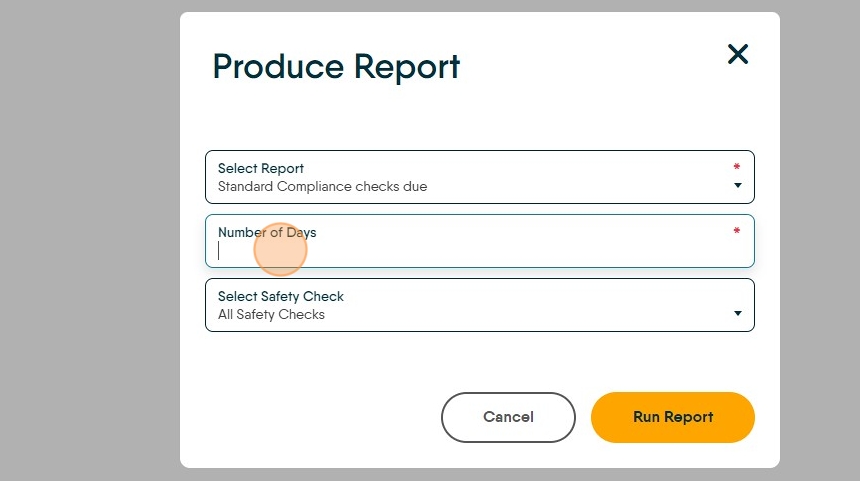
8. Click "All Safety Checks" or the option you are wanting to create.

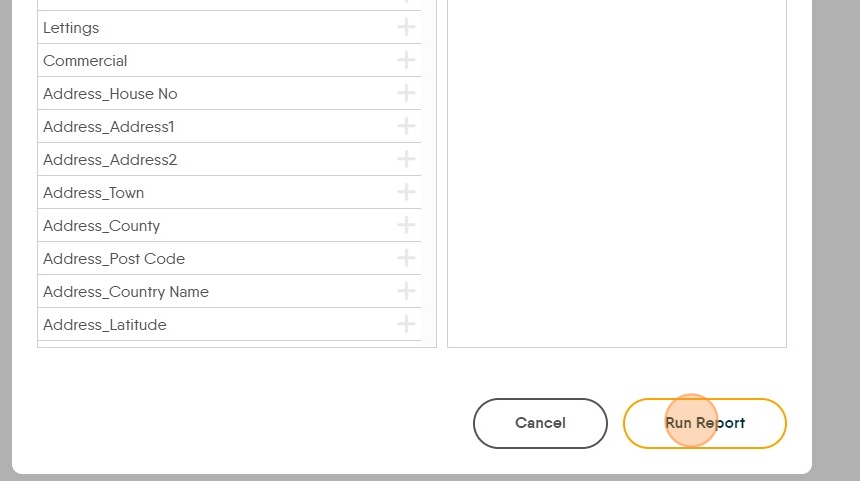
9. Click "Run Report"

10. Complete any options in the next screen, often case no additional options need to be selected. Click "Run Report"
11. Your report will show on the screen. Click "Print" to print the document.

12. Or Click "Export" to create a specific file type e.g. PDF or Excel. Pick the file type from the drop down list.
**This is the best way to manage a report created by CRM**

13. Then click on 'Close' to return to the reports screen.