This guide offers a straightforward process for creating a professional property brochure in Adobe PDF format, ensuring your listings stand out. It simplifies the steps involved, making it accessible even for those with minimal technical skills. The process shown below is the same for creating any report or brochure in the CRM, the only difference may be the file type you export the document to.
Alert: Alert! Please note that YOUR COMPANY printer settings control the output of this document as much as the setup of the document. Please ensure that the printer settings are set correctly e.g. if you are printing a document that is in landscape format the printer MUST be set to print landscape.
1. Navigate to the property you are creating the brochure/window card for

2. Click here.

3. Click "Create Brochure, Report"

4. Click here.

5. From the drop down menu, select the document you are creating.
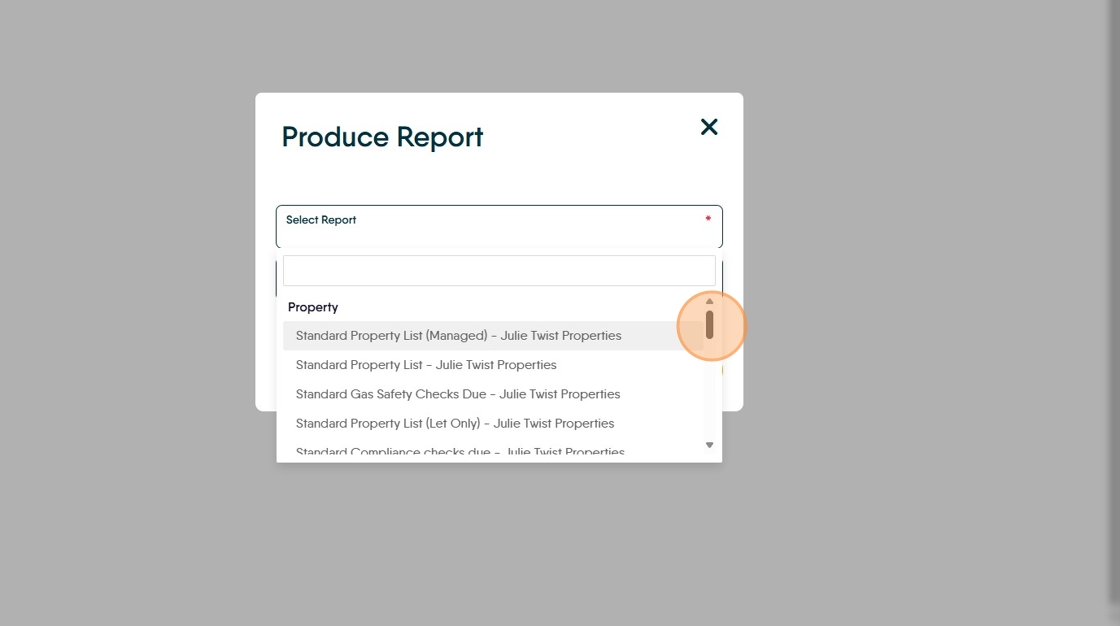
6. In this case we will use "A3 Window Card Template" click that.

7. Click "Run Report"

8. This will create the report and show it as a Proof version on screen. To get the finalised print version export the document.
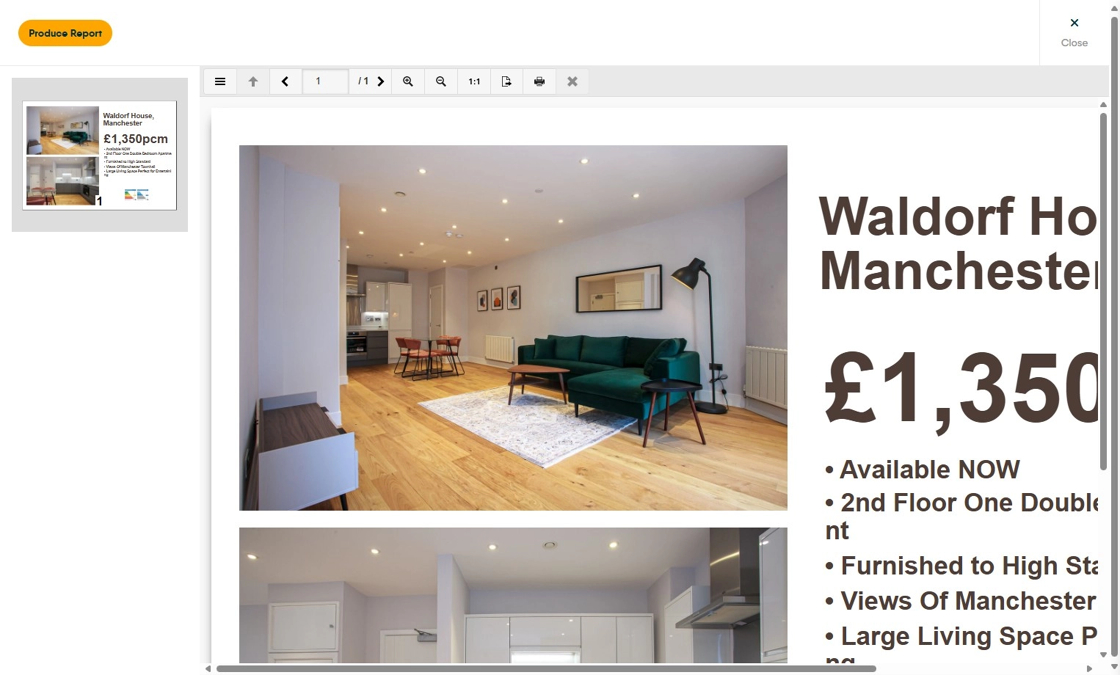
Tip: Tip! We find that you get far better results on a print out if the Brochure is exported to PDF.
N.B. If you have created a report then save as word or excel to be able to edit the data.
9. Click "Export"
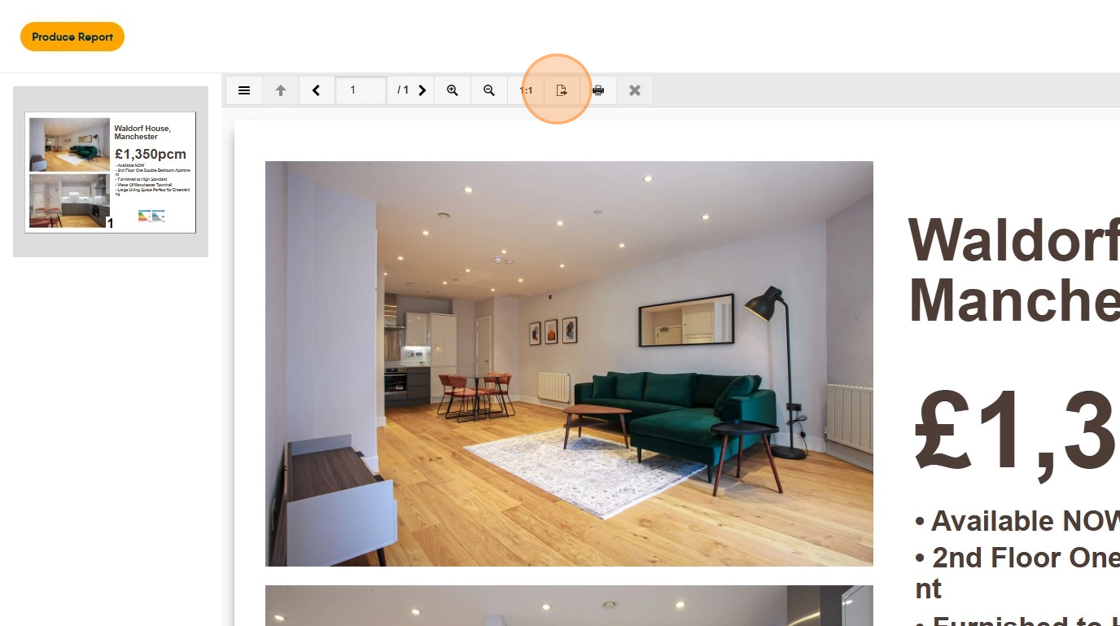
10. Click "Adobe PDF" This will save the finalised document as a PDF into the 'Downloads' folder on your computer. The PDF is the document you will print.

11. Ensure your printer settings are correctly set to print the type of document you are creating.