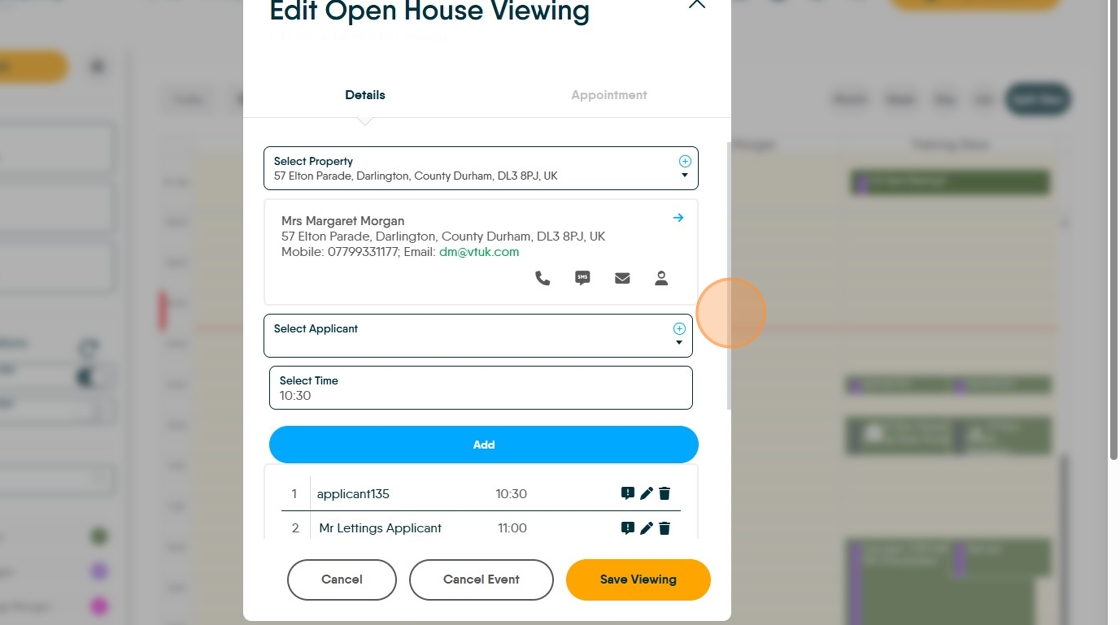
This guide offers a straightforward method for scheduling an open house viewing using the CRM platform, ensuring a seamless experience for both agents and clients. It provides step-by-step instructions that simplify the process, allowing users to efficiently set up viewings, manage appointments, and make necessary adjustments. By following this guide, real estate professionals can enhance their organisation and improve client engagement, ultimately leading to successful property sales.
1. Navigate to https://crm.iamproperty.com/Calendar
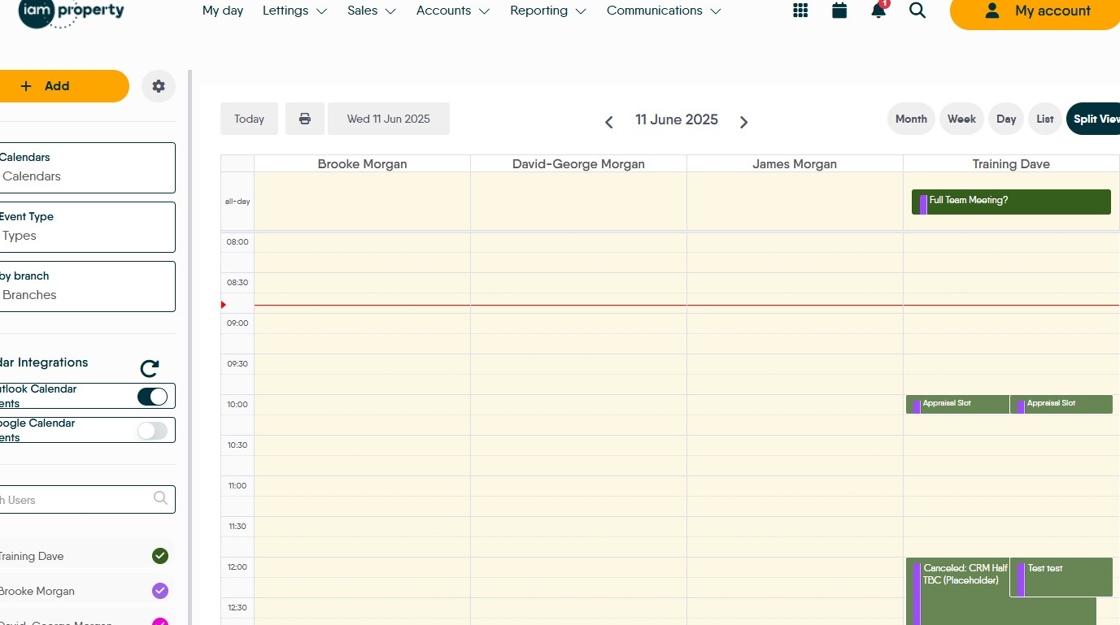
2. In the CRM calendar right-click on the time and date you want to set the appointment for.

3. Click here and select the Sales or Lettings and then from the menu.

4. Click "Add Open House Viewing"

5. Click here and add the Property name. If you are adding a new property click the blue + icon.

Tip: Tip! Once the Property Details have been added it is a good idea to set the appointment criteria. The CRM will only allow you to book appointments that fit into the timescale you have set for the appointment.
6. Select the property from the list. This will then show the Owner/Landlord details and give the option to email them.

7. Click here and add the Applicant, select them from the drop down menu, or click the blue + icon to add new.

8. Click the "Select Time" field to set the time for the appointment, multiple appointments can be set for the same time and the default time can be edited, for example if you want 5 minute intervals just edit the end time to suit.
Click "Apply"

9. Repeat this process as many times as required. If you exceed the time allowed for that appointment the CRM will warn you, to resolve this click the 'Appointment' tab and extend the time you have allowed for the Open House.
10. Once all the Viewers have been added then the appointment can be set as 'Viewing Confirmed' and set the status as Booked.

11. Select the "Booked" option.

12. Click here to assign the appointment to a specific user. The default is always the person creating the appointment.

Setting the Appointment length
Tip: Tip! Best practice is to do this when you start to create the Open House, CRM will only allow appointments to be created that fit into the timescale set in this section.
13. Click "Appointment"

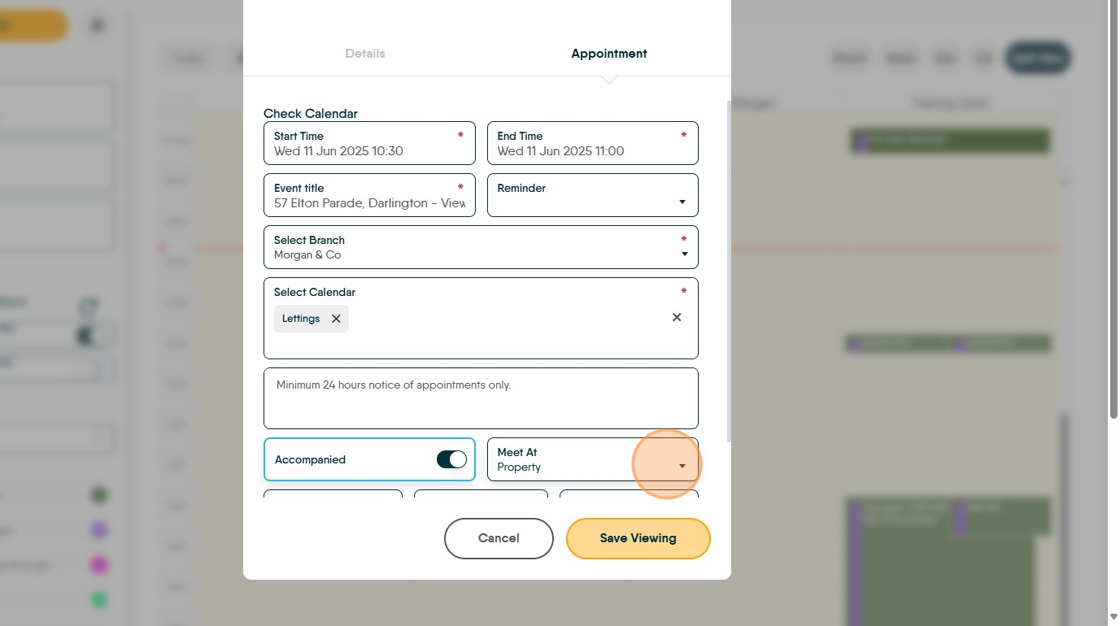
14. If you are setting the appointment from the calendar the start and end will be the time you have clicked to Start the session and the End will be set at the default time for a Viewing (usually 30 minutes) Click here to set the end time for the appointment.
The Event title is the property name, this can be edited if required.

15. Check the Branch and Calendar options are correct.
If required, select the "Meet At" option.
16. Click "Select Property
57 Elton Parade, Darlington, County Durham, DL3 8PJ, UK57 Elton Parade, Darl..."

17. Click "Save Viewing"

18. Click "Save Viewing"

19. Click "Details"

20. Click the "New time" field.

21. Click "Apply"

22. Click "Save Viewing"

23. Click "57 Elton Parade, Darlington - Viewing Open House"

24. Click "Edit the details for this viewing"

25. Click here.

26. Click "Delete"

27. Select the "Cancelled" option.

28. Click "Save Viewing"

29. Click "57 Elton Parade, Darlington - Viewing Open House"

30. Click "Loading