This guide shows how to use a checklist within iamproperty CRM.
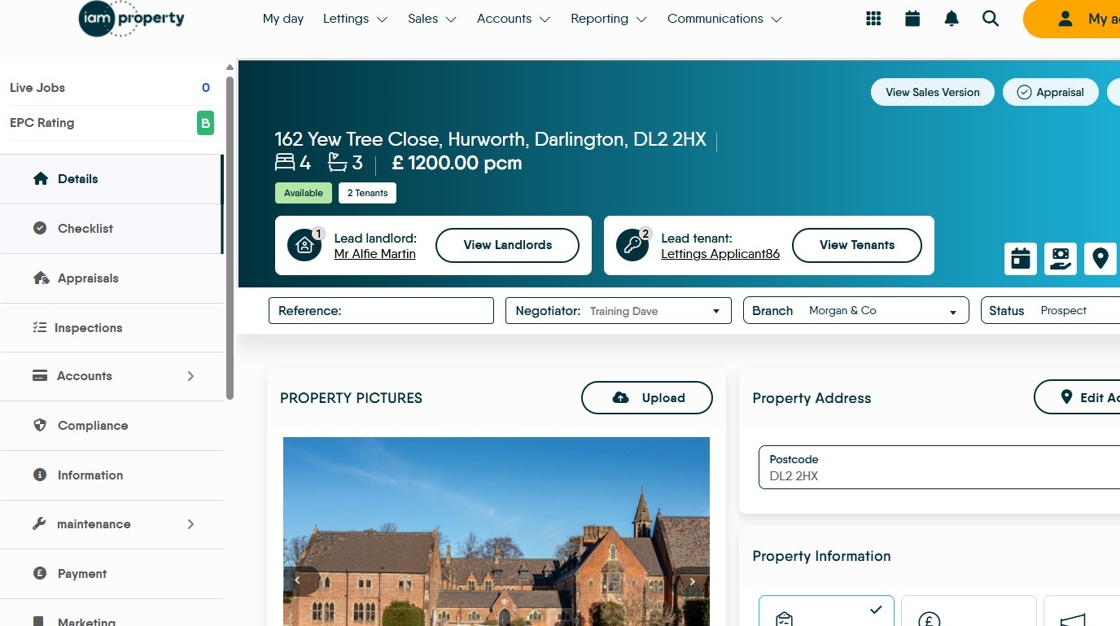
2. Click "Checklist"

3. Select the Checklist you are going to complete.

4. Click the checkbox to mark the item completed

5. Notes can be added to the checklist item, either before or after the item is marked completed. Click here to add the notes.

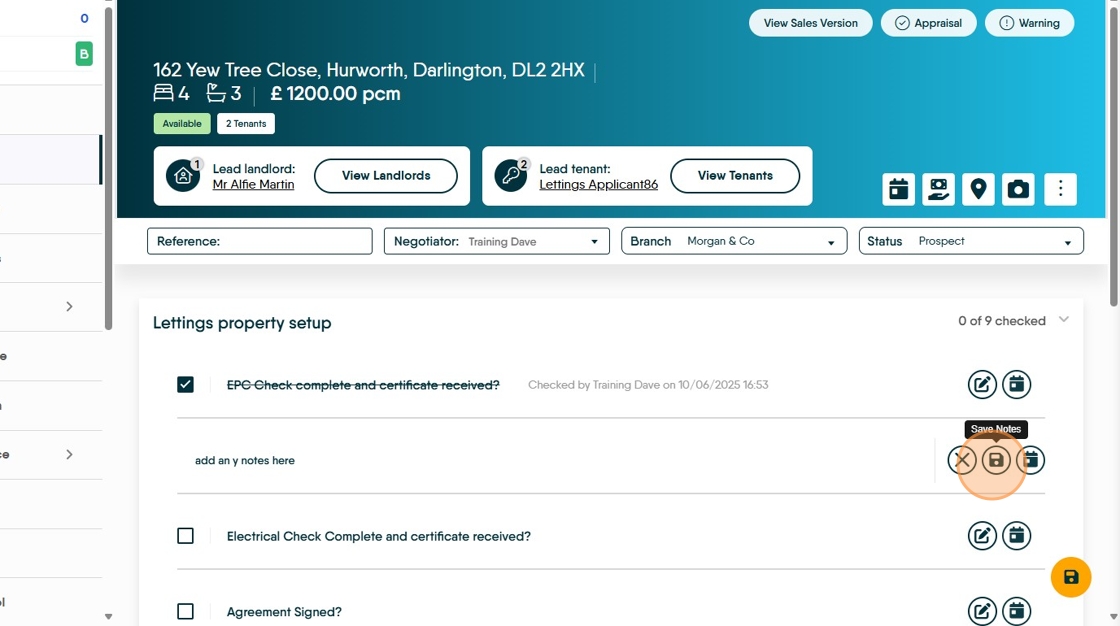
6. Click here to save the notes.

7. A date can also be added to the item. If a date is added, the checklist item will show in the Activity List, with a reminder for the item the date is set for.
8. Click here to mark a line as completed. Once marked complete the line will be struck-through and the username, date and time of completion will be added to the row.
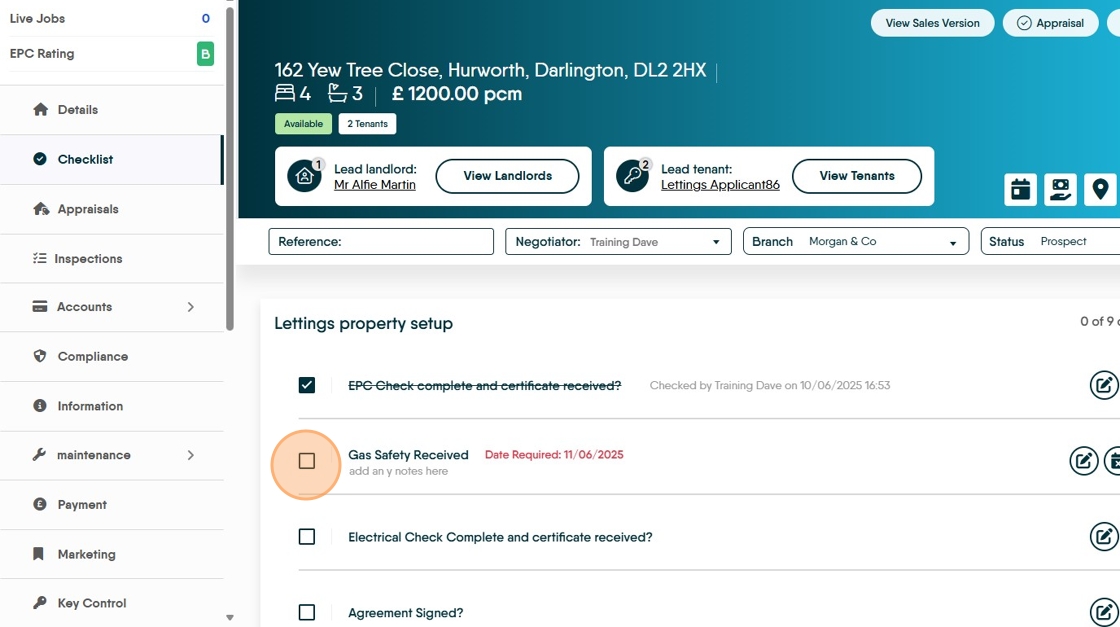
9. Click here to clear the completion date
