This guide provides a step-by-step process for adding a Sales Applicant record in the CRM system. By following this detailed instruction, users can ensure accuracy and completeness in their data entry, which is crucial for effective sales tracking and customer relationship management. The guide is particularly beneficial for new users or those unfamiliar with the CRM interface, helping them navigate the system with confidence.
1. Navigate to https://crm.iamproperty.com/MyDay
Tip: Tip! When creating a new applicant record, if there are 2 applicants e.g. Mr&Mrs, Mr&Miss etc, it is best practice to create 2 separate applicant records and link the applicants via the link applicants option. This allows easier compliance checking through movebutler.
2. Click "More Actions" aka the 'Bento' menu

3. Click "Add new record"
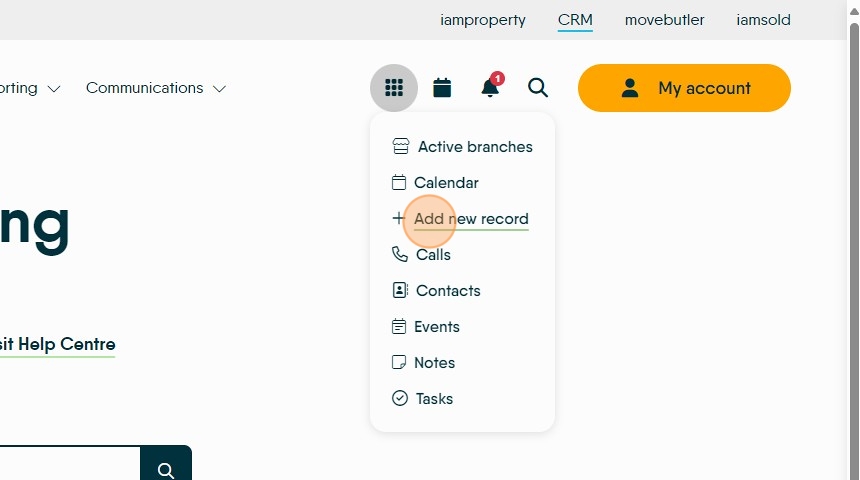
4. Click "Sales Applicant"
Tip! if you press and hold the 'ctrl' key on your keyboard this screen will open in a new browser screen.

5. Click here and complete all the fields required.
The minimum information required to set up a new applicant is the Surname and Email address.
If an email address is used that has been used previously in CRM, you will see a screen that allows you to merge or import the data from the old record into the new one.

Tip: Tip! the absolute minimum information required to add an applicant is Surname and Email address.
6. Click here to create the 'Salutation'. It is always a good idea to create this as it is often used in letters and email templates and if not created will leave a blank space in the letter or template.

7. Click the "Enter postcode" field. click the search icon to find the property address of the applicant.

8. Select the address from the drop down menu.

9. If the address isn't showing or is incorrect select the best option and then click "Edit manually"

10. If the address needs to be edited, then click into this field. Click this text field. Complete all the updates.

11. Once the address is selected and any edits are complete scroll down the screen.

12. Click "Enter your notes here..." these could be best times to contact the applicant, or not contact.

Alert: Alert! This area is customisable to your needs. The options in Applicant Criteria on your CRM will be different from what are shown here. Some options may be empty or contain different options to those shown
Tip: Tip! If you are going to use the 'Matching' function in CRM then it is important you put some details into the Applicant Criteria area.
13. Now add the Applicant Criteria, this is the details of the type of property the applicant is looking for. Click the "Search for Area..." field.
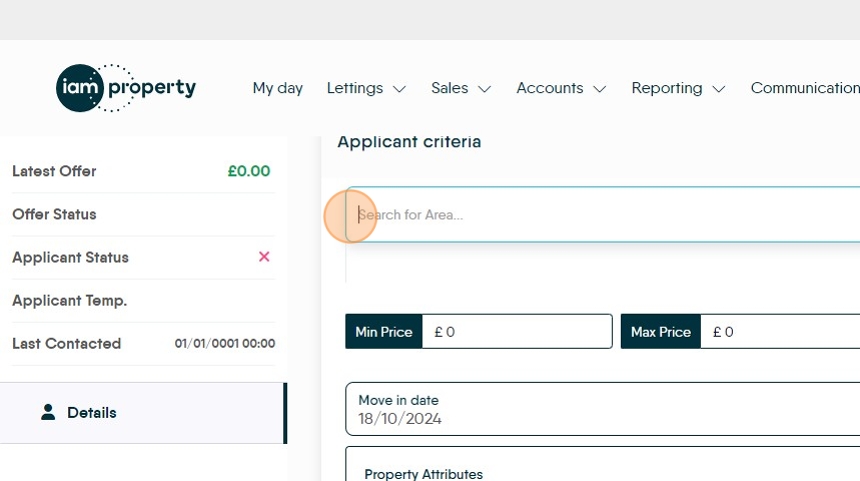
14. Type the town, street, postcode of the area your applicant is looking for a property.

15. Click into this drop down to set a search radius around the area selected. If a town is selected this is around the postcode area for that town.

16. Click here to set the lower price limit the applicant is looking for

17. Click here to add the upper limit.

18. Click this text field. to add the minimum number of bedrooms and minimum number of bathrooms.

19. Click here to set the buyer position
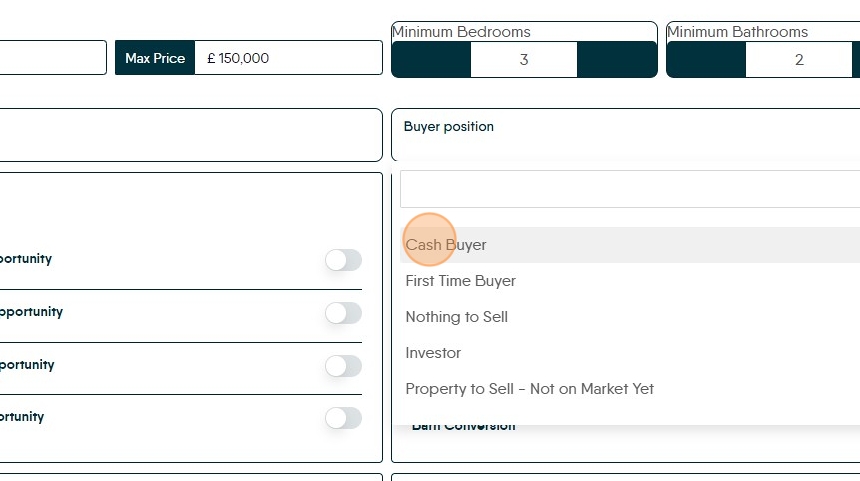
Tip: Tip! The more completely these screens are filled in the more accurate any property match will be.
20. Click the "Search Property Type" field to set the types of property the applicant is looking for. Complete the other screens as required.

21. Click "Additional information" to add any more info regarding the applicants requirements.

22. Click here to save the details you have added.

23. Once the new applicant is saved there will be a list of new menu options on the left of the screen.
Checklist will only be of use if you have created a Checklist for a New Sales Applicant.
Viewings will show entries created in the Property record as well as the calendar, Offers will show entries created in the Property Record as well as the Applicant record.
Documents, any documents relating to the Applicant should be loaded into here.

Creating a Linked Applicant
Tip: As mentioned at the start of this guide it is important to create Linked Applicants where there are more than 1 applicant in a sales or lettings agreement. This allows quick and easy linking to other areas of CRM e.g. movebutler or Referencing.
24. Click "Linked Applicants"

25. Click "Link Applicant"
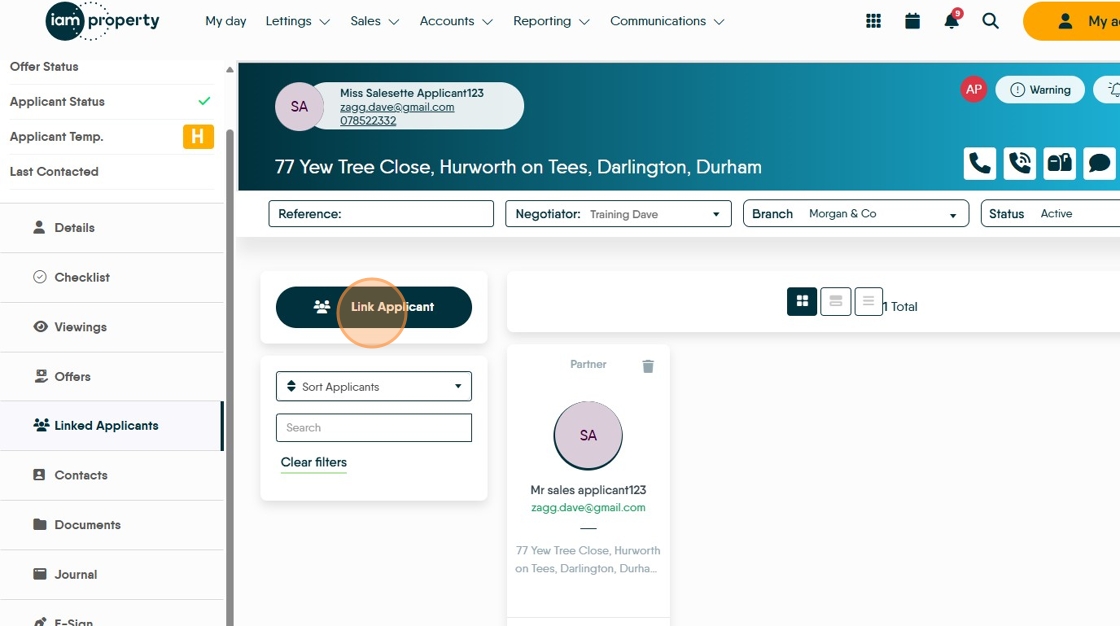
26. Click here.

27. Click "Partner"

28. Click here.

29. Click "Link"

30. Click "Cancel"
