This guide provides a straightforward process for creating a professional property brochure, which is essential for effectively marketing real estate. By following the steps outlined, users can quickly generate a visually appealing document, from documents that have been pre selected, that showcases property details, enhancing visibility to potential buyers or renters. Utilising this guide can save time and ensure that all necessary information is presented clearly and attractively.
Alert: Alert!
You will need to have selected the brochures from our catalogue, or sent your CRM Onboarding Specialist your current documents.
1. Navigate to https://crm.iamproperty.com/MyDay
To create a Brochure, Window Card etc.
Tip: Tip! We show a Lettings property here, however the process is the same if creating a brochure for a sales property.
Brochures and Window Cards are created in the same way, you select the appropriate document to create.
2. Click "Lettings" (or Sales)

3. Click "General"

4. Click "Properties"

5. Search for and select the property you want to create the brochure for. To display all the properties, click the "#All" option on the screen or type "#All" into the search bar.

Tip: Tip! If you know the Property you want to create the Brochure for then use the search tool

6. Click here.

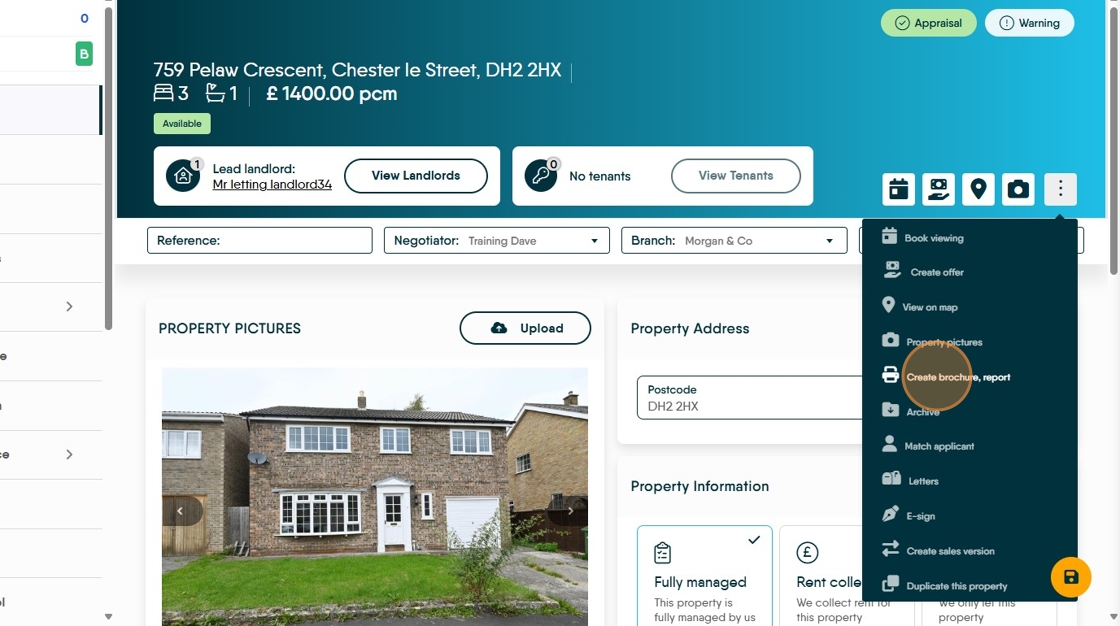
7. Click "Create Brochure, Report"

8. Click here to show the list of documents available. As previously mentioned this list is based on what has been supplied to iamproperty CRM or selected from our standard documents list.
Click on your chosen brochure/window card
9. Check the Property address is correct.

10. Click "Run Report"


11. A proof of your Brochure will show, this will be a representation of what will be produced. N.B. this is a proof screen and may not display perfectly.

12. Click "Export"
Click "Adobe PDF Format" (this is the best format to export a brochure or window card), the file will be saved to the downloads folder of your computer. This document can then be printed or emailed as required.
Click "Close" to exit the screen.
Tip: If you want any edits to your brochure, window cards etc. please contact CRM support on crm-support@iamproperty.com or 01865 860870