This guide offers a straightforward approach to creating a deposit invoice for tenants, ensuring accuracy and efficiency. By following the outlined steps, users can easily navigate the system, customise transaction descriptions, opt to create a physical deposit invoice. A deposit invoice can be created at anytime before the payment is receipted into CRM. Utilising this guide will help streamline financial processes.
1. Navigate to https://crm.iamproperty.com/Dashboards/Accounts
2. Click here.

3. Click "Select tenant" type the Tenant name and select them from the drop down menu. There is also the option to pay this invoice with UnAllocated funds or Deposit Funds, if there are funds available they will show in the box highlighted on screen.


4. Click "Select transaction type" then click "Deposit Invoice"
This will bring over all of the data relating to the Deposit payment as set up in the Tenancy document.
5. Click the "Description" field and add a description for the transaction. Make this as clear as possible so it is easy to find.

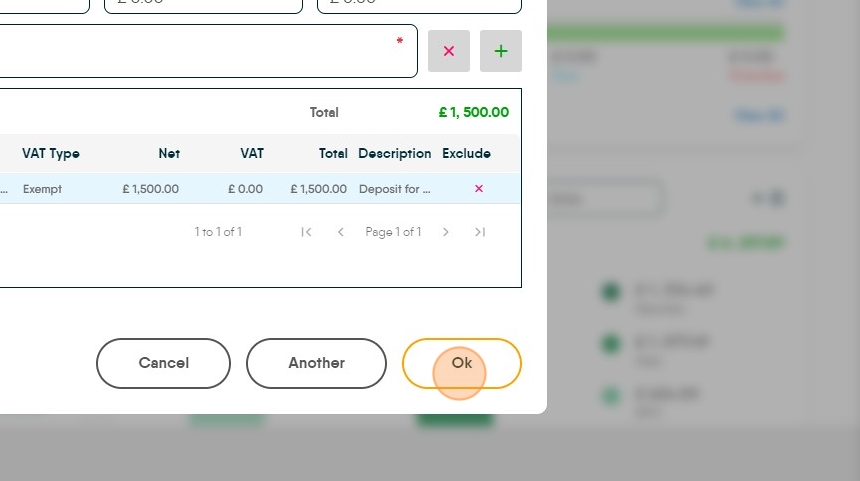
6. Click here to create the Deposit Invoice

7. Click "OK" to complete creating the invoice. The Invoice is then created and will sit in the Deposit tile till paid.
8. Click either "Yes" or "No" to producing a tenant invoice to be sent to the tenant.
