This guide provides a step-by-step process for efficiently uploading property information to various online property portals. It simplifies the process ensuring that listings are presented accurately and attractively across multiple platforms. By following this guide, users can enhance their property visibility, streamline their workflow, and potentially increase sales opportunities. This resource is essential for anyone looking to maximise their property marketing efforts effectively.
Tip: In this guide we use a Sales property, however the process is the same for both sales and lettings properties.
1. Navigate to https://crm.iamproperty.com/myday then navigate to the property you are managing.
2. Ensure that you have the complete address for the property. To ensure the address is correct, click on 'Edit Address' to check and edit as required.

3. Add the property price and the price prefix

4. Click "Marketing"
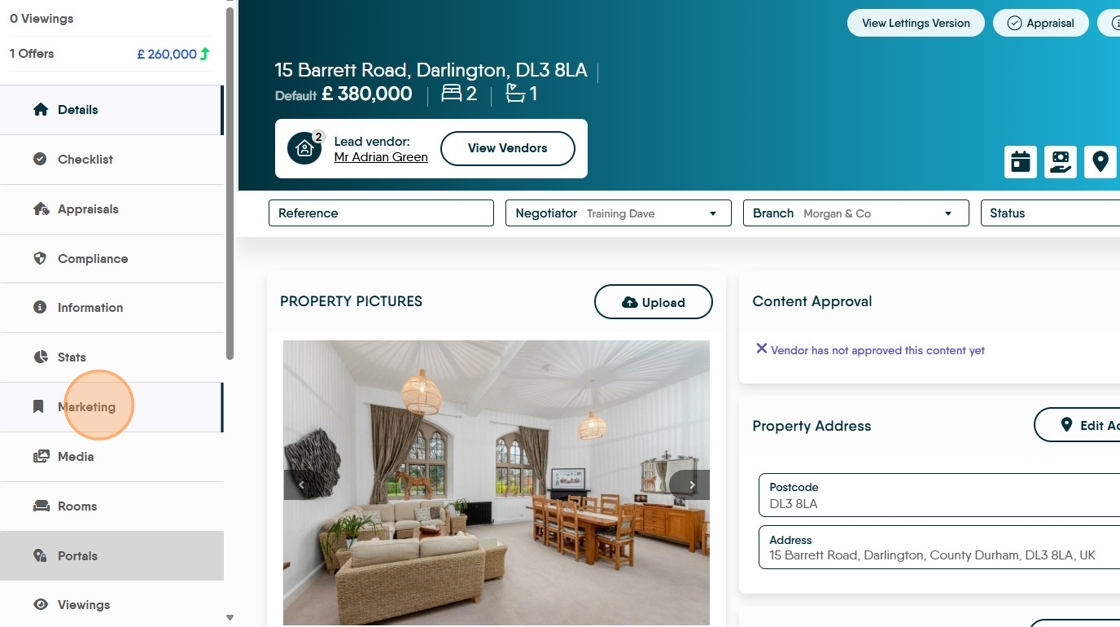
5. Complete the Prices, bedrooms, bathrooms, reception rooms and matching section.

6. Set the Property Type from the drop down menu
Also set the "Property Type Zoopla"

7. You need to add the Property Description and the Summary Description. If these are not completed the upload will fail.
Also add the Key Features

8. Click "Media" then "Add Media" and add the property images.

9. One the images are added and all the previous sections are completed. Navigate back to Marketing.

10. Click the 'Advertise' checkbox.

11. Then click 'Save'.

12. You will then be able to access the portals tab on the property record.
Click "Portals"

13. Click "Upload to All" to select all the currently enabled Portals or click the upload icon next to each portal.
Click "Continue" this will upload only this property to the Portal.

To bulk upload all newly created Properties, rather than one at a time.
14. From the top menu. Click "Sales" then Click "Upload to portals"

15. Click "Select all Portals" if you are uploading to all rather than some portals. If you are selecting only some of the active portals, select them from the right side of the screen.

16. Click the "Select Branches" field to select which branches properties you are uploading, this can be some or all of your branches.
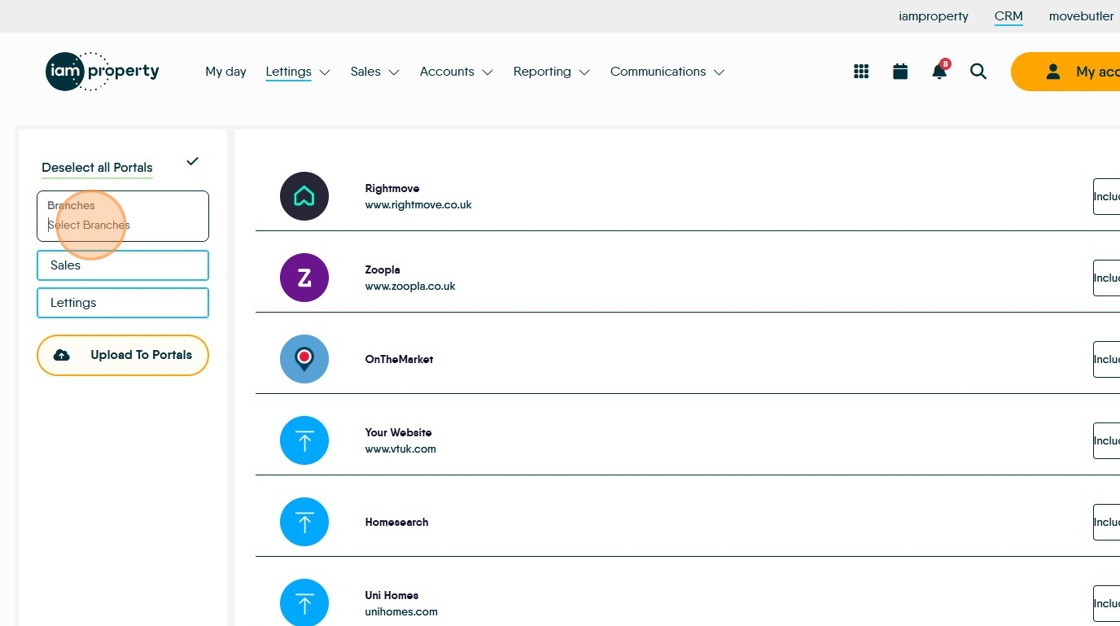
17. Click on the branches you are uploading the properties for.

18. Select whether you are uploading Sales or Lettings or both.
Click as appropriate.

19. Click "Upload to Portals"
