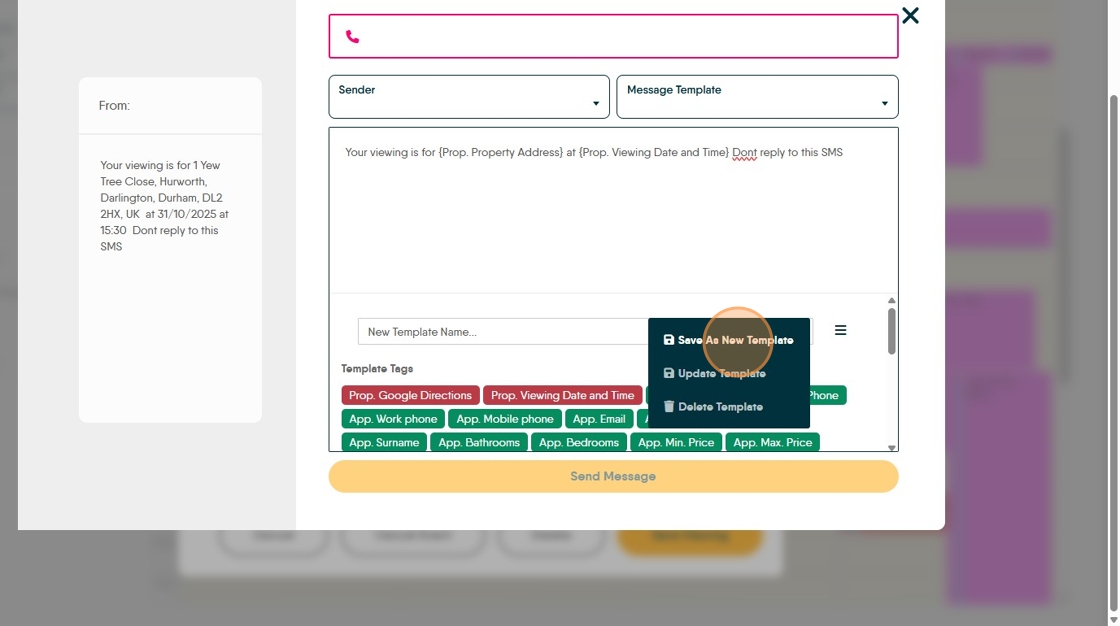
This guide provides a step-by-step process for creating an SMS template to confirm property viewings, ensuring clear communication with clients. By following these instructions, users can efficiently set up and send personalised messages, enhancing professionalism and client engagement. The template streamlines the confirmation process, saving time and reducing errors, making it an essential resource for real estate professionals.
Once the Viewing has been created and saved this process can be followed.
2. Re open the Viewing appointment. Click "Send SMS"

Alert: Alert! There are only 160 characters allowed in standard SMS messaging.
Standard SMS is not 2 way. It is good practice to add a 'Do Not Reply to this SMS' line to all SMS sent via CRM (or directly from any internet/none mobile phone based sms.)
3. Click this field and start to type your message. Or select a pre-set template from the "Message Template" menu - If you have previously created them.

4. As you type it will preview in the left screen.
To automatically add text to the screen use the template tags at the bottom of the screen
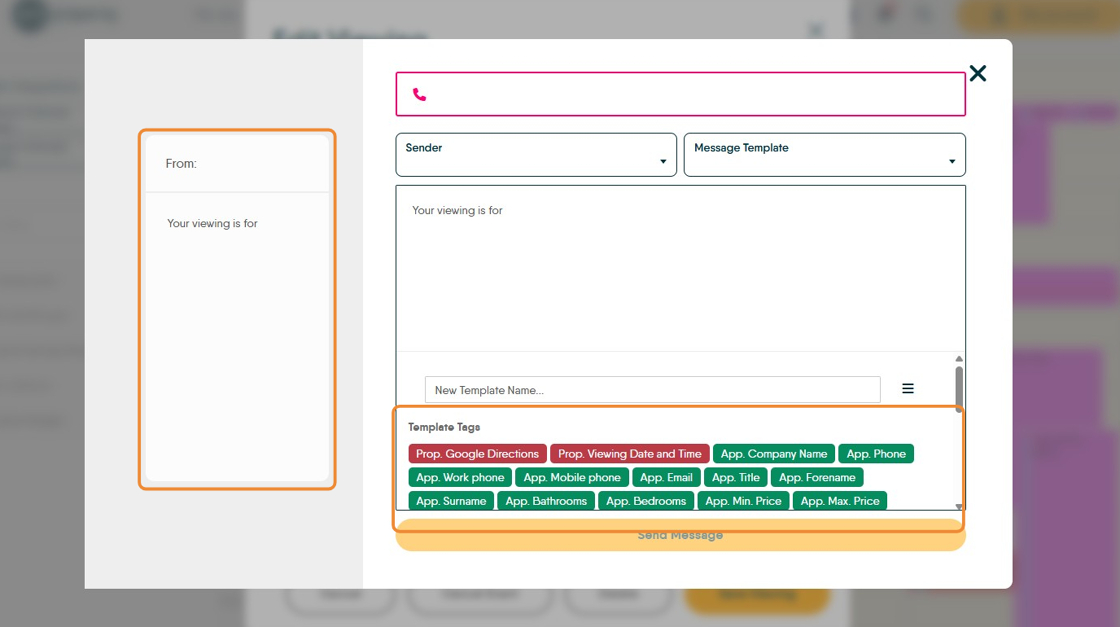
5. To add "Prop. Viewing Date and Time" click the template tag at the bottom of the screen.

6. Click "Prop. Property Address" to add the template tag for adding the Property Address. There are a lot of template tags to choose from.
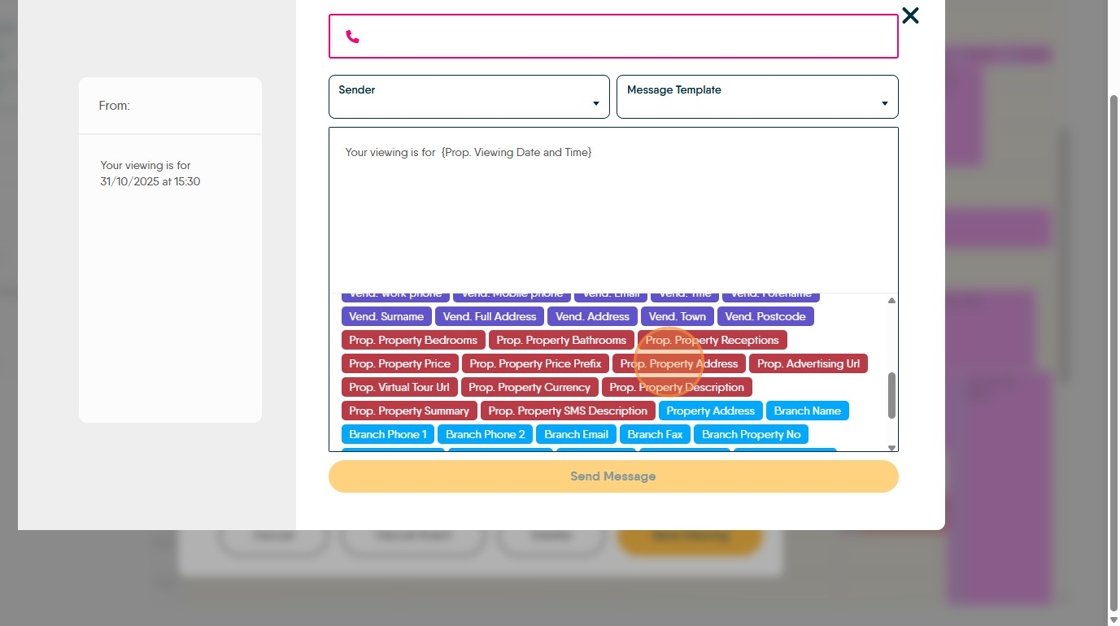
7. Your message will preview in the left of the screen.
Unless the 2 way SMS feature is enabled on your account it is advised to add a 'Do Not Reply' message.
Please be conscious of the 160 character limit.

8. Type a name for your template into the 'New Template Name' field.
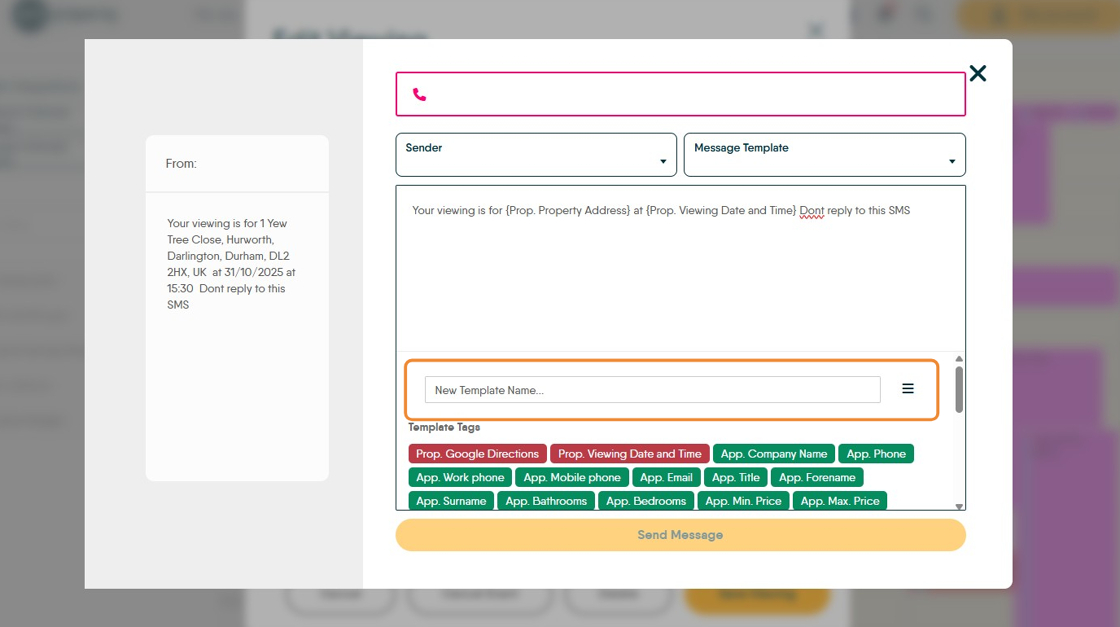
9. Click the 3-line menu and "Save As New Template"