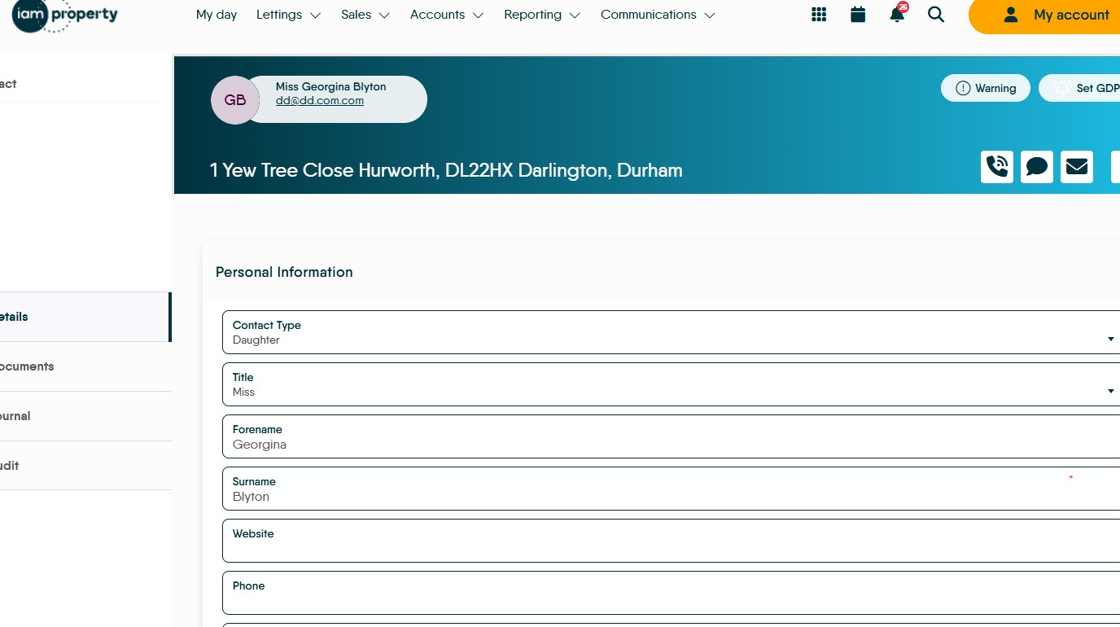
This guide provides a straightforward solution for resolving the 'Whoops' error screen in your CRM, which occurs when trying to access records from branches you don't have permission to view. By following the simple steps outlined, you can quickly enable access to the necessary branches and refresh your data view.
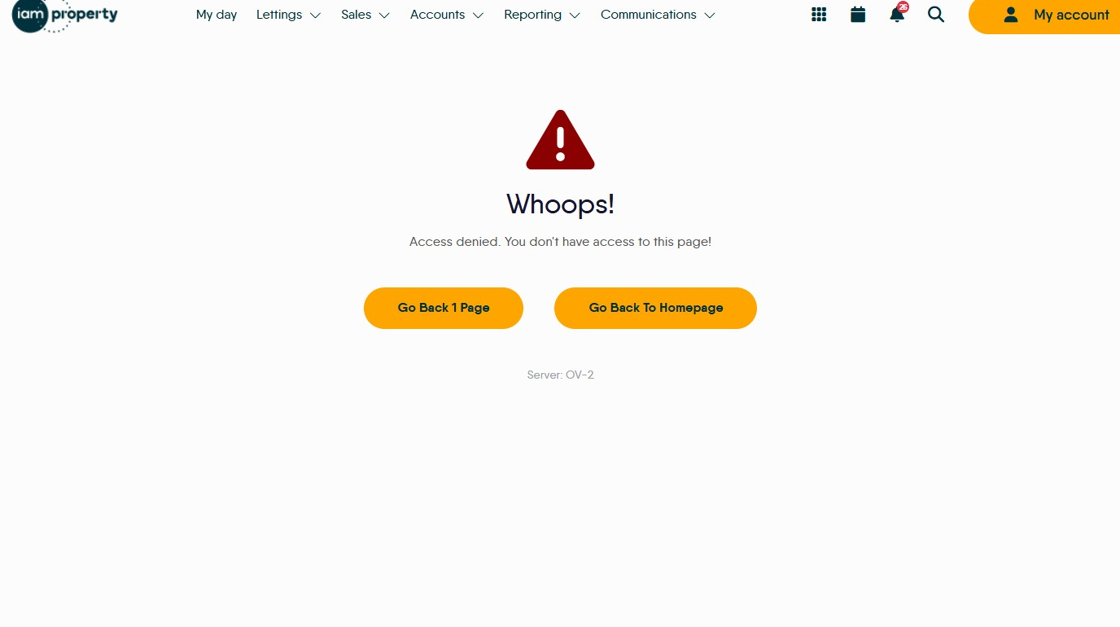
1. This icon will show when you are trying to access a record that is attached to a branch that you currently don't have access to.
2. Click "My Account"

3. Click "Active branches"


4. Click the branches you want to enable. If you are unsure which branch it may be select all branches.
Click this checkbox.
5. Click "Save"
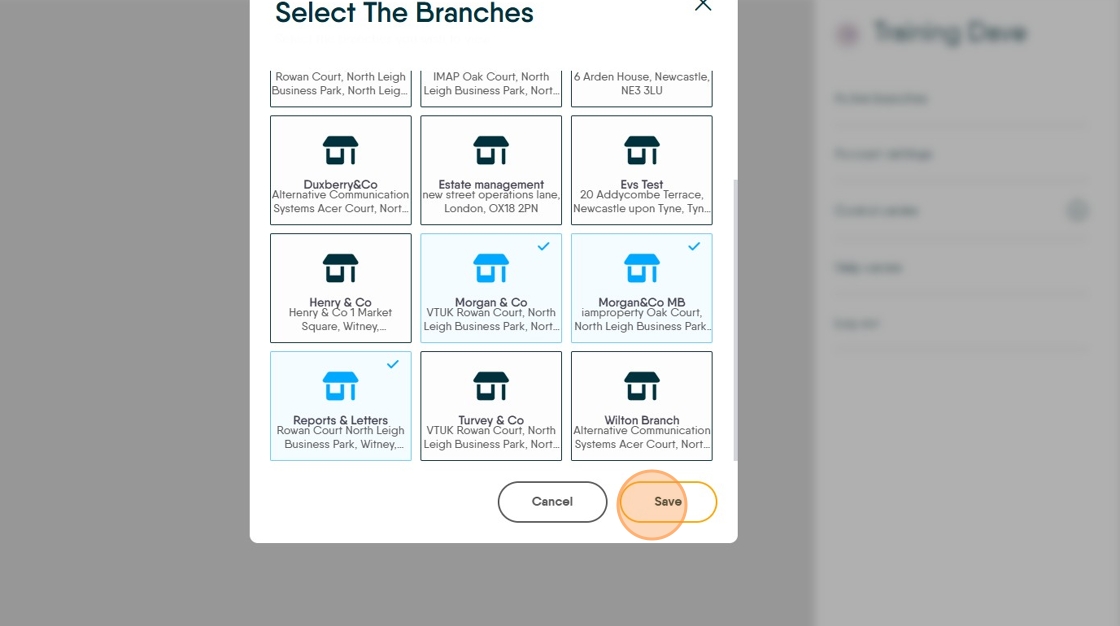
6. The screen should update and show you the data, if it doesn't update click the refresh icon on your browser menu bar (usually top left corner).