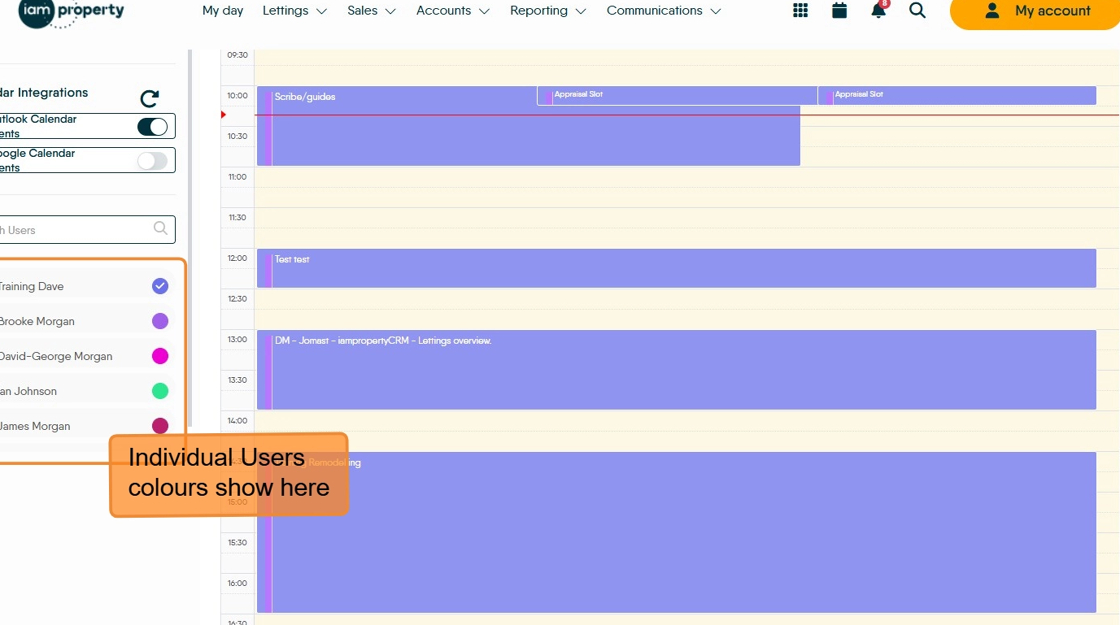
This guide provides a step-by-step process for editing the users colours in CRM calendar. This is useful for clearly identifying job functions or just adding some personality to CRM.
Alert: Alert! Do Not use RED as the a colour for users. This colour is already used to show an Unconfirmed Viewing/Appraisal etc.
1. Click "Calendar"
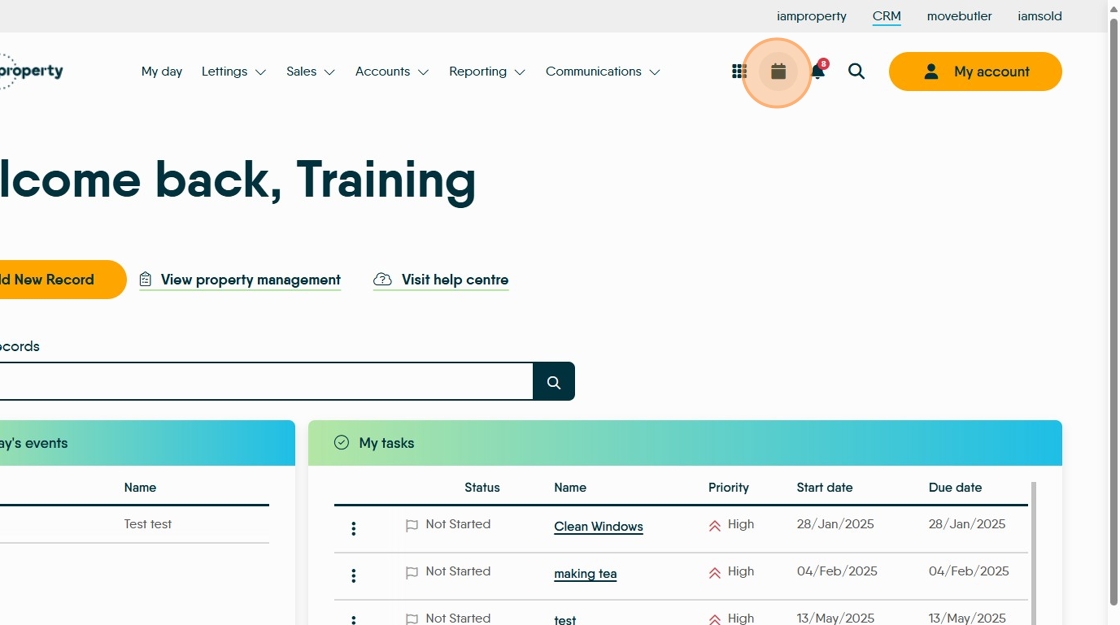
2. Click here to access the configuration menu.

3. Click here. The 'paint can' icon controls the colour of the background, the 'T' icon controls the colour of the text.

Tip: Tip! Try to avoid light colours and light coloured text as this makes the details difficult to view.
4. Click here to select the colour.

5. Click here to make fine adjustments to your selected colour. As the colour is changed you can see the change on the screen.
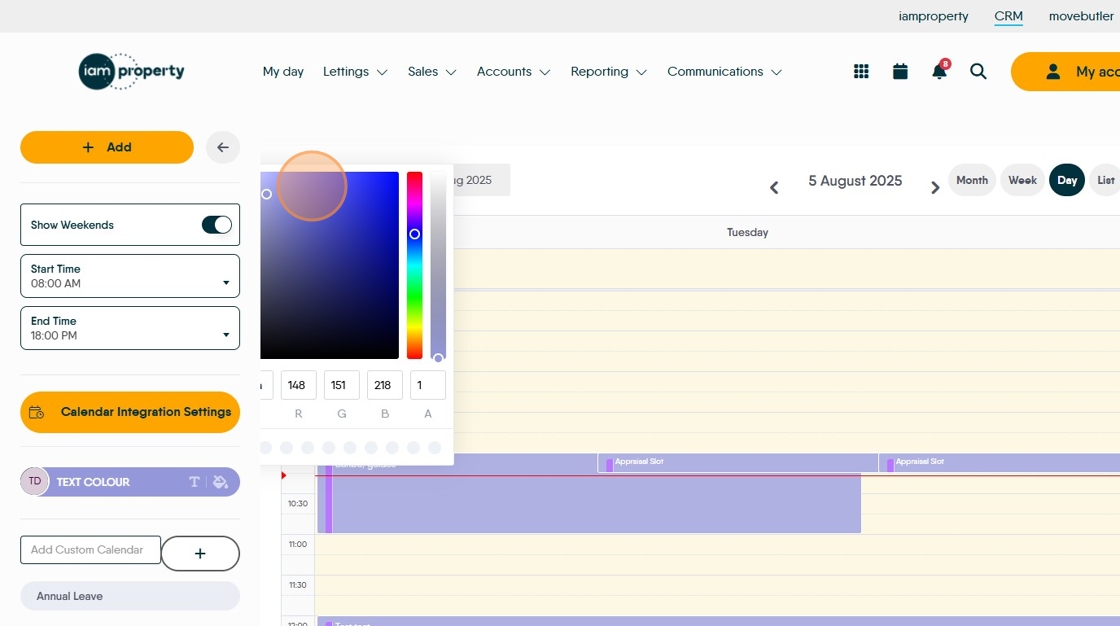
6. Click here to exit the configuration screen.

7. If a very specific colour is required and you know the RGB numbers for the colour add them here (in the highlighted box)

8. The calendar for the user will now show in the newly created colour.