This guide provides instructions for effectively using the Notification Bell feature in your CRM, ensuring you stay updated on important events and communications. By following the steps outlined, you can streamline your workflow, manage notifications efficiently, and enhance your responsiveness to applicants and clients. Whether you're handling lettings or managing documents, this guide is a valuable resource for improving your CRM experience.
1. Navigate to https://crm.iamproperty.com/MyDay
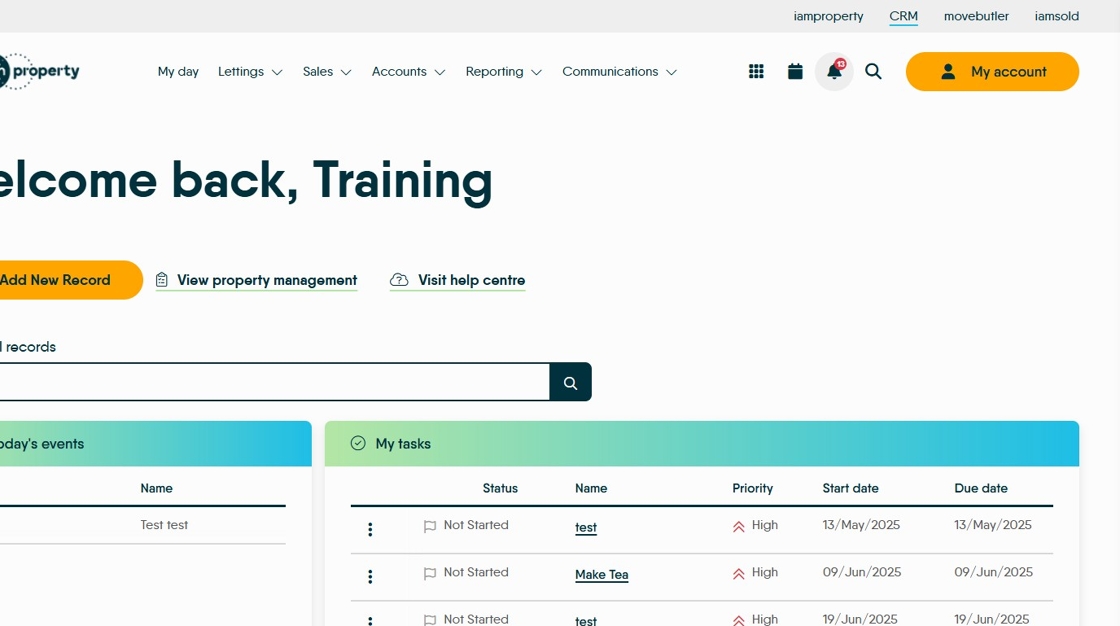
2. Click "Notifications"


3. Your notifications will show in the drop down menu. Click here.

4. The message will drop out for you to review. Click here to mark the message as being read.
Click here.
5. You will also see notifications in emails or SMS messages sent to customer fail as well as failures in Portal uploads

6. Click "Clear all" to mark all notifications read and remove them from your notifications list.
Some of these messages are duplicated as emails (e.g. Letzone) and in the Activity Lists.
