This guide offers a step-by-step approach to effectively navigate the My Day screen on the iamproperty CRM platform.
1. Navigate to https://crm.iamproperty.com/MyDay
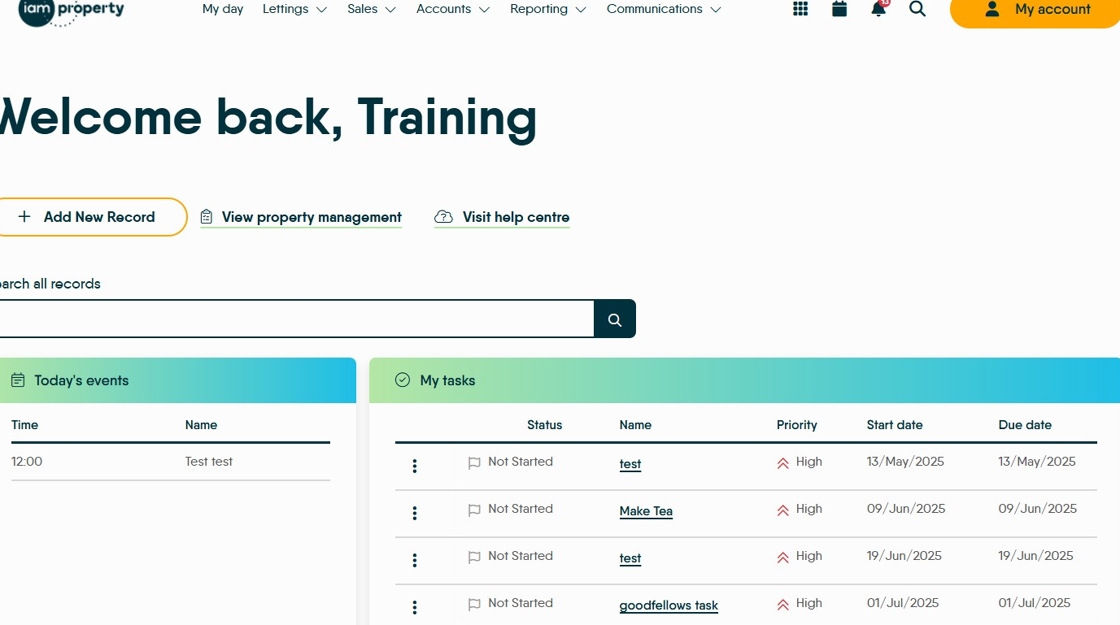
2. To add a new record in CRM. Click "Add New Record"

3. Click "Select record type"

4. Click "Close"

5. By clicking "View property management" you can access the Property Management module and manage your property maintenance tasks
n.b. this will not show if Property Maintenance is not enabled on your account.

6. Clicking "Visit help centre" will take you to the CRM Help Centre where you will have access to the CRM support documentation and the Support team.
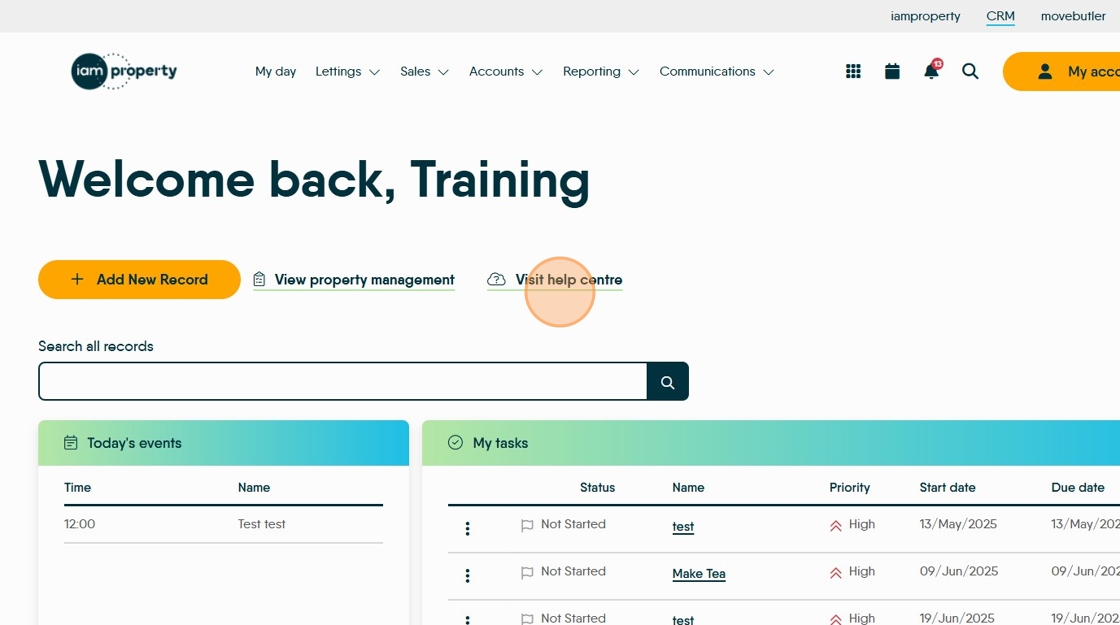
7. Click "Search all records" to access the CRM search function. From here you can search all the areas of CRM using the minimum of information.

8. "Today's events" is a list of all the CRM calendar events you have for the day. You can also easily access the Calendar from here.

9. "My tasks" will show you all your currently due and overdue tasks. Click "View all tasks" to see current, overdue and future dated tasks.
Tasks are flexible 'to do' items that can be created for your self or colleagues and linked to client records in the CRM for reporting purposes.

10. At the top of the My Day screen you will see all the menu tabs to access the modules you have enabled in CRM. These menu options are always available, regardless of where you are in CRM. Click 'My Day' to come back to this screen if you have moved away.
You may see the same as shown or fewer icons depending on your personal setup.

11. To the right side of the screen you have the 'Bento' menu, Calendar, Notifications and search icons plus 'My Account'
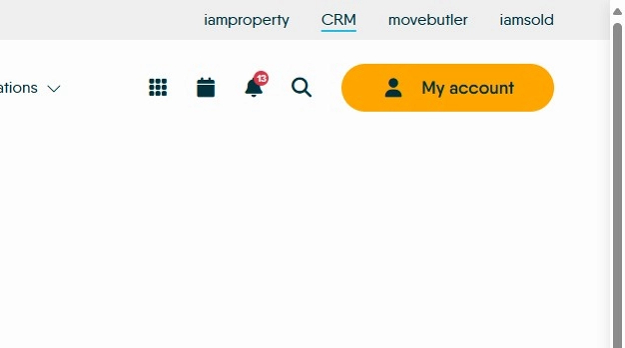
12. Clicking on the 'Bento' icon will give you a menu.

13. This menu gives you quick access to various features from anywhere in the CRM. From here, calls can be logged, tasks created etc.

14. Click "My account"

15. A menu will display. Branches, allows visibility of the currently active branches. Account settings will allow the user to edit their own name and contact detail for use in CRM. Control Centre will, if enabled show the user the 'Control Centre' and Configuration functions.
