This guide provides a straightforward approach to creating tasks in the CRM system, ensuring users can efficiently manage their responsibilities. By following the clear steps outlined, individuals can enhance their productivity and streamline workflow by creating or sharing tasks for themselves or colleagues. It is particularly useful for those new to the system or looking to optimise their task management process.
1. Navigate to https://crm.iamproperty.com/MyDay

2. Click Bento menu aka Rubics cube
Click "Tasks"
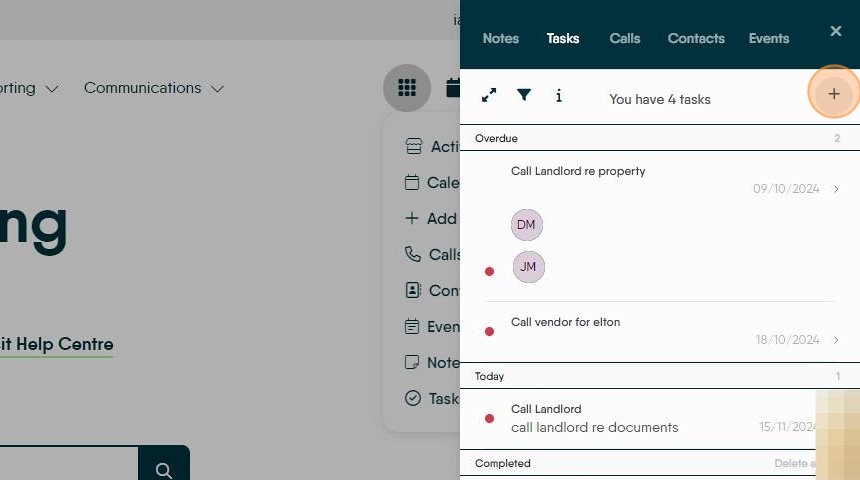
3. Click on the + to create a new Task
4. Set a priority for the task ( this is not required)
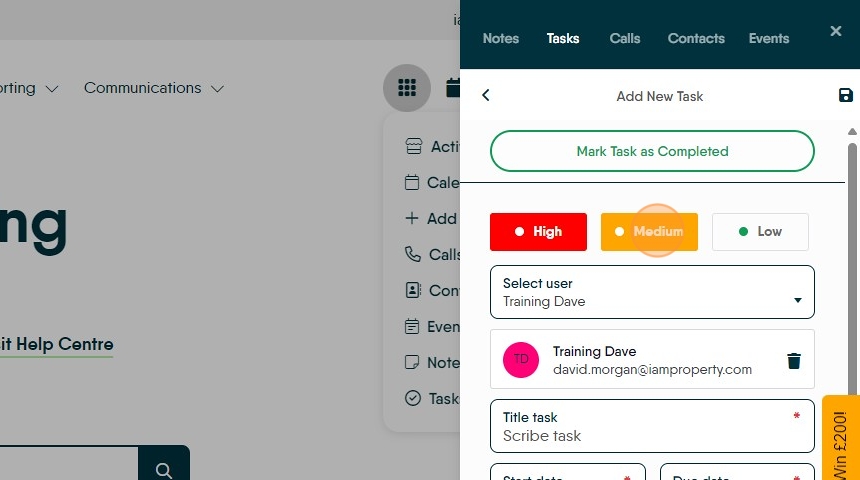
5. Select a Negotiator to assign the task to.

6. Click this text field and name the task

7. Click to add a start date to your task, this can be off in the future or today as required.

8. Click here to set the due date. This is the date the task is due to be completed by.

9. Click here to add your description of the task, what needs to be done etc.. be as descriptive as possible in case a colleague needs to pick up the task.

10. Click here to add any steps that need to be performed to complete the task. The task can be accessed and a step ticked off, then the task saved until complete.

11. Click here to add a Property or Person record to link to the Task.
This allows you to link the task to a record in the CRM and have that task linked in the Journal as incomplete/complete task.

12. Click here to add additional negotiators to the task. This allows a Manager to track performance on a task or to allow there to be multiple negotiators working on the same task.
