This guide provides essential instructions for effectively managing property-related invoices and tasks within the iamproperty CRM. Also shows how to easily see if there is an invoice added to an already completed task.
1. Navigate to https://crm.iamproperty.com/Toolbox/TaskList

2. Select the Property you are adding the invoice to. Clicking on the Property address will take you into the record.

3. Click "Live" and change the option to Completed
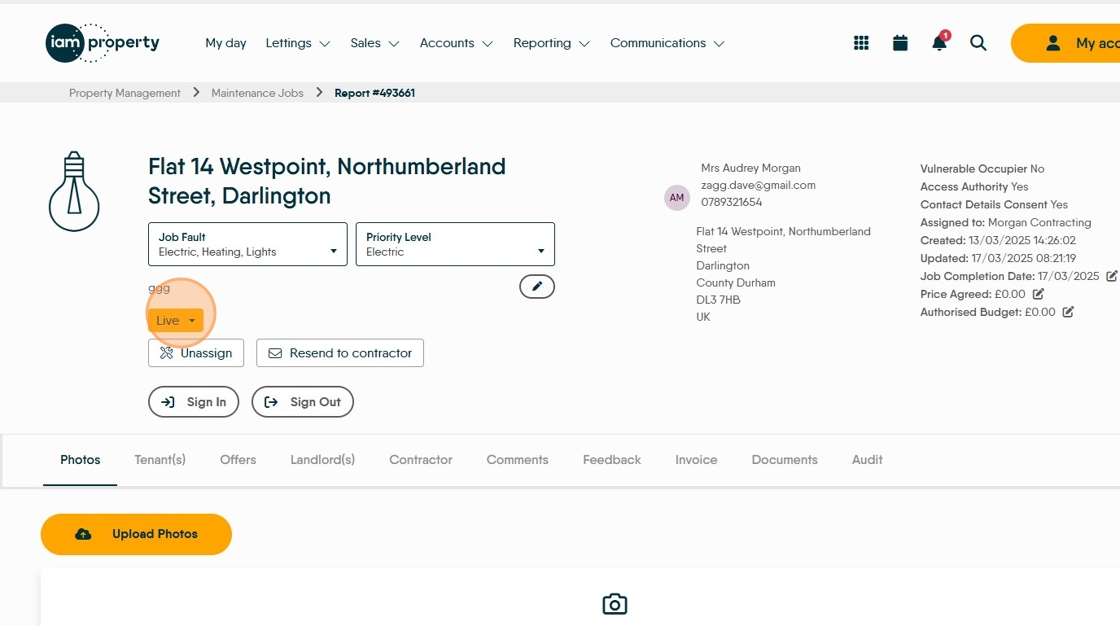
4. Click "Completed"
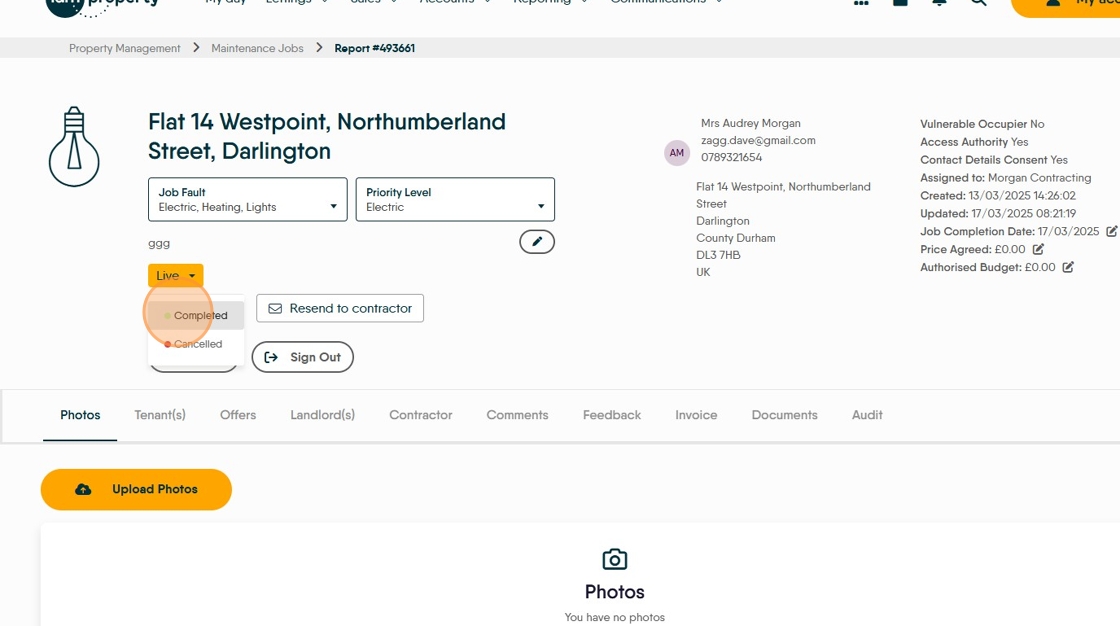
5. Click "Yes, Change"

Tip: Tip! You may need to refresh the screen at this point to show the 'Add Invoice' option
6. Click "Add Invoice"

7. Click "Upload Invoice" and find the invoice to add. You can also drag the invoice document directly from your email (if the invoice was emailed to you)

8. Click this text field. Add the Contractor Invoice Number
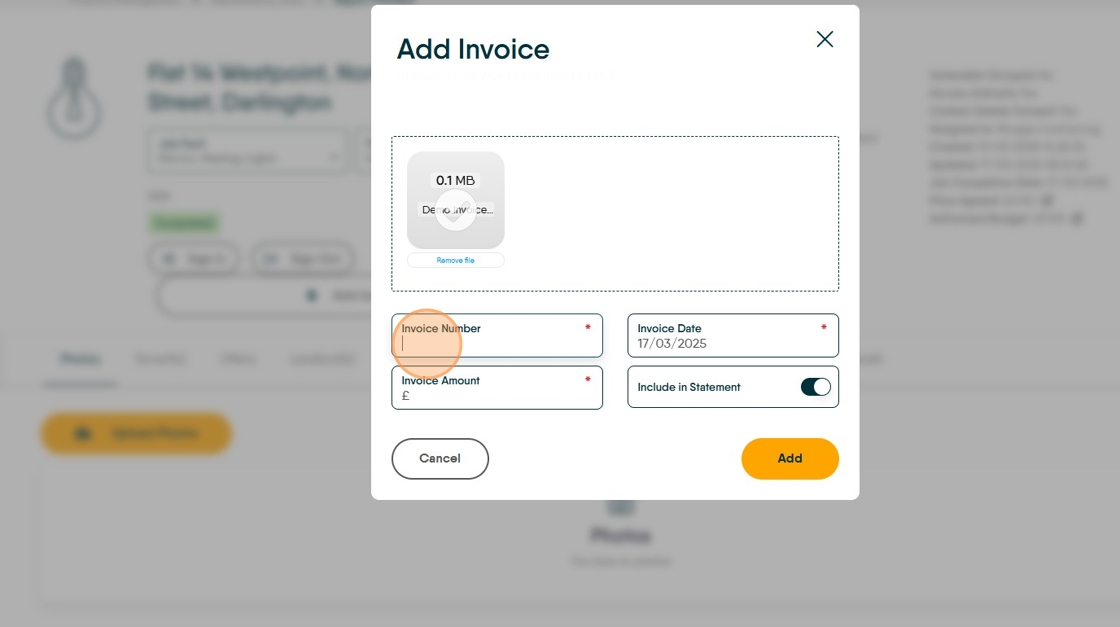
9. Click this text field and add the Invoice amount, check the the date in 'Invoice Date' is correct.

10. Click "Add" this will add the completed job to 'Jobs Outstanding' in the Expenses section of CRM Accounts.

11. Click "Accounts"

To View/Check Invoice
12. Click "Invoices"

13. This screen shows all the completed jobs in Property Management. If 'Download' is shown then an invoice is added and can be viewed/downloaded.

Expenses in Accounts
14. Click "Accounts dashboard"

15. Click here.
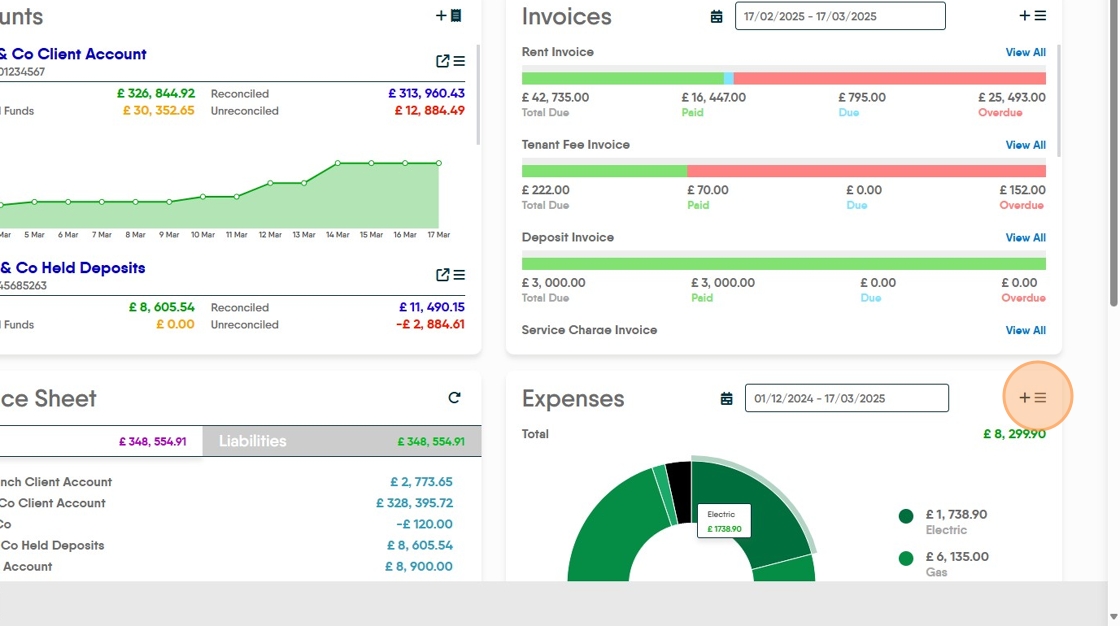
16. Click "Jobs Outstanding"

17. In Jobs Outstanding Click here.

18. Click "Edit"

19. In the Edit Expense screen. Most of this screen is pre completed, you will need to set the 'Expense Category', click into the box and select from the menu. Then click "Payment"

20. This will show you the Invoice details if one has been added. An Invoice can be added here if required, into the Attachments tab. Click 'Create Invoice', if the invoice was added in the Property Management module when the job was completed then the data will show in here. Select the 'SubType' and click 'Save' to charge the expense to the Landlord.
